
VRCFT Setup Guide with the Beyond 2e
Overview
The Beyond 2e makes a great pairing with VRChat to help enable better expressions through eyetracking. By default, OSC is the main method to send data to VRC. However, more expansive capabilities (such as per-eye winking) can be done through use of the VRCFT plugin instead!
This page serves as a setup guide.
Getting started
Perform eye tracking enrollment through the Beyond Utility and ensure eyetracking enables correctly.
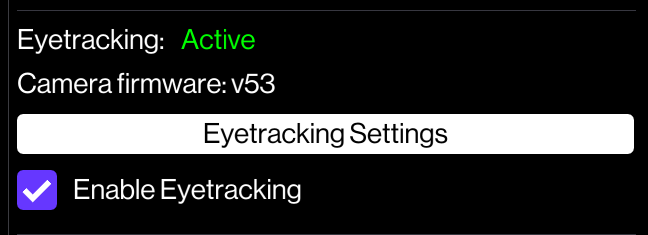
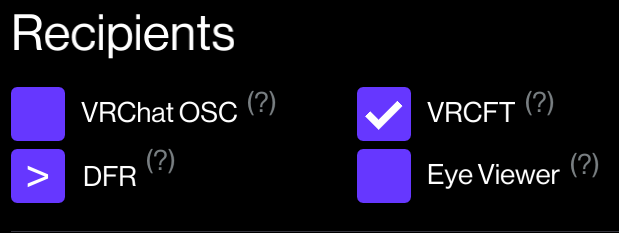
Once enabled, make sure to select VRCFT only in the eyetracking settings OSC can be used as an alternative without requiring external plugins, but has a more limited featureset.
Download VRCFaceTracking through Steam.
This can be set to launch automatically when you start VR. if you prefer to manually launch it, then just remember your eye tracking won’t work if you don’t start it!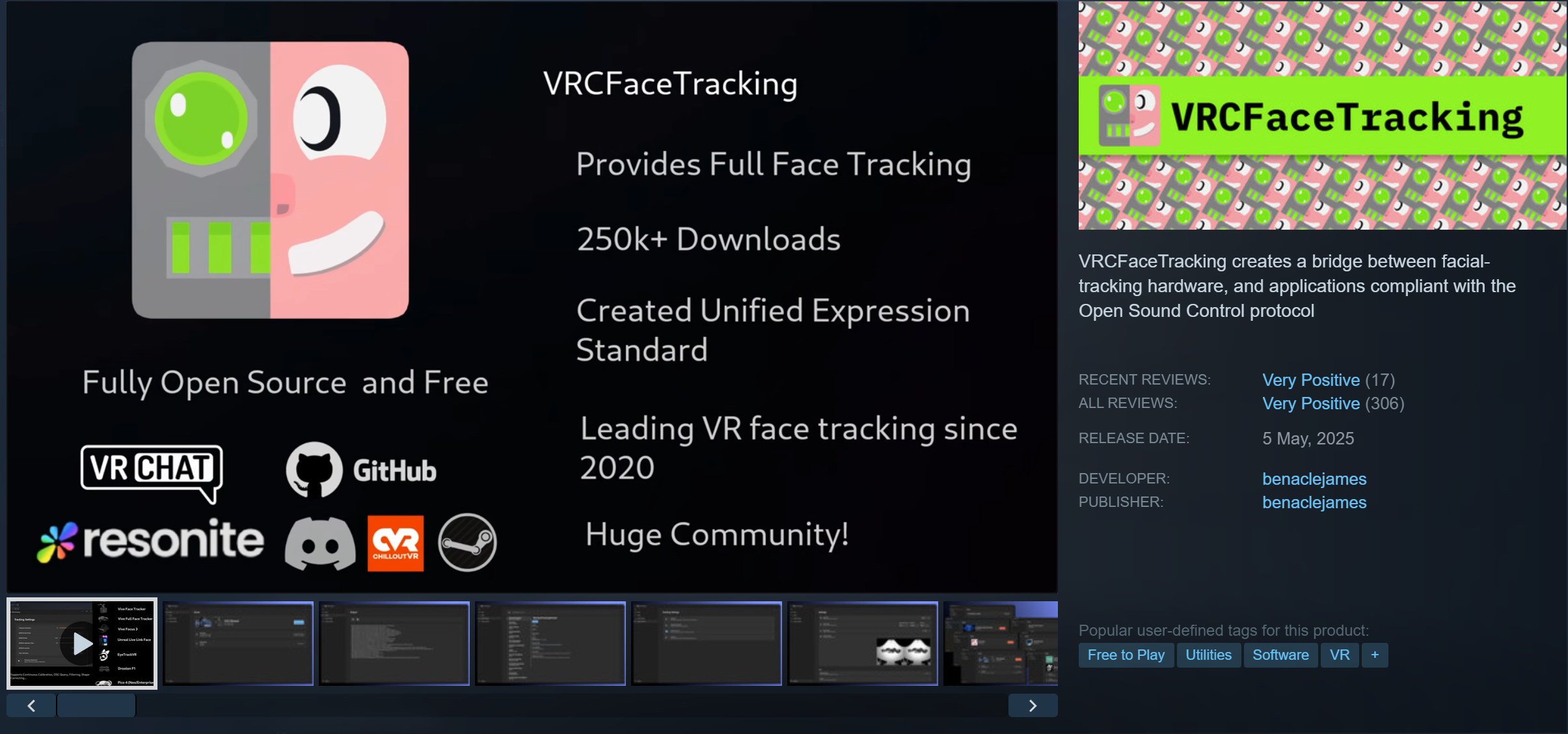
VRCFT Module setup
In order to use VRCFT with the Beyond, the correct module must be installed.
NOTE: Ensure only one module is running at a time and disable others. Multiple VRCFT modules (e.g. Baballonia + Official module) may conflict and cause issues.
Head to the module registry.
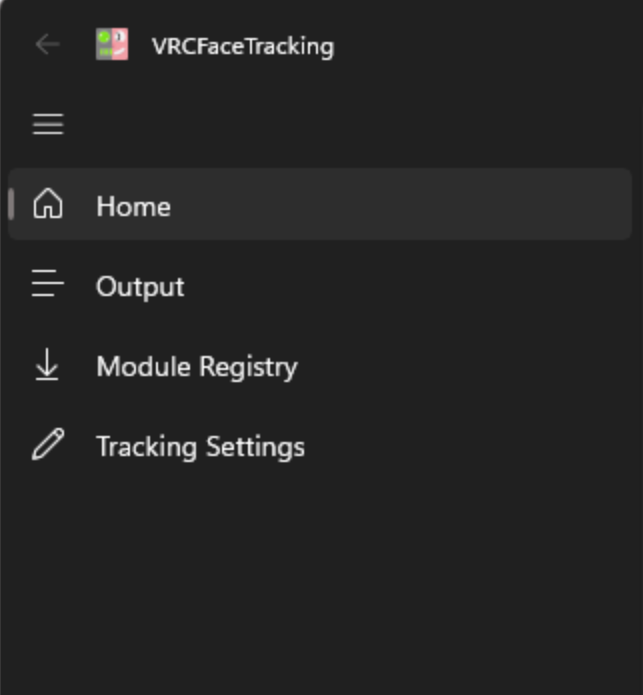
Head to the BeyondTrackingModule and click install.
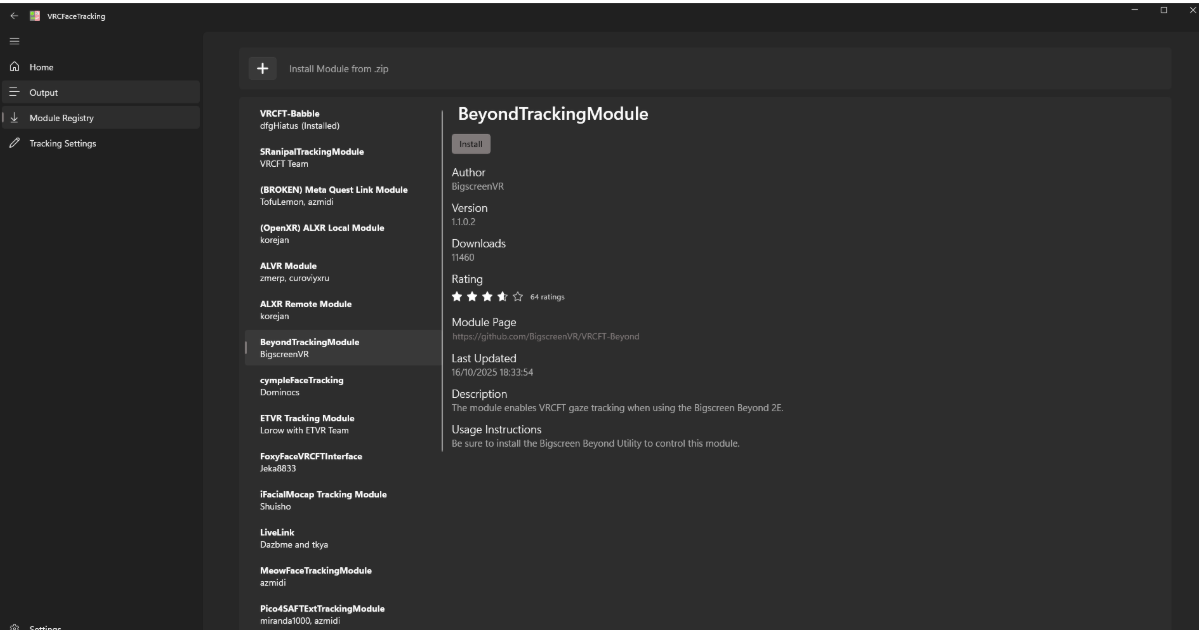
Now that you've done this, you will need to restart VRCFT.
Enabling OSC in VRChat
In order to utilize eyetracking, VRChat must be ready to accept data. To do so, ensure OSC is enabled.
Open the radial menu and head to "options"
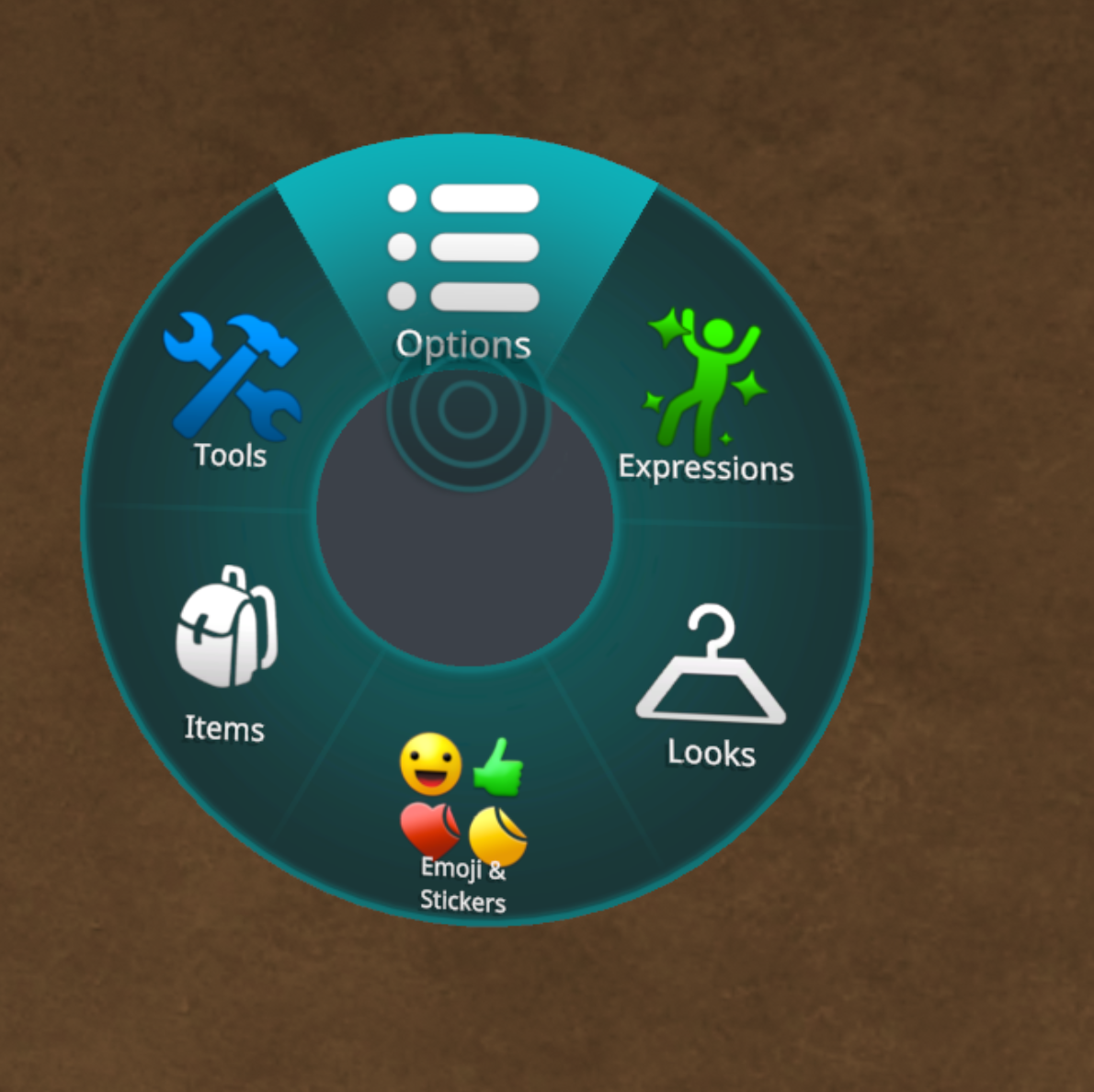
Then to "OSC"
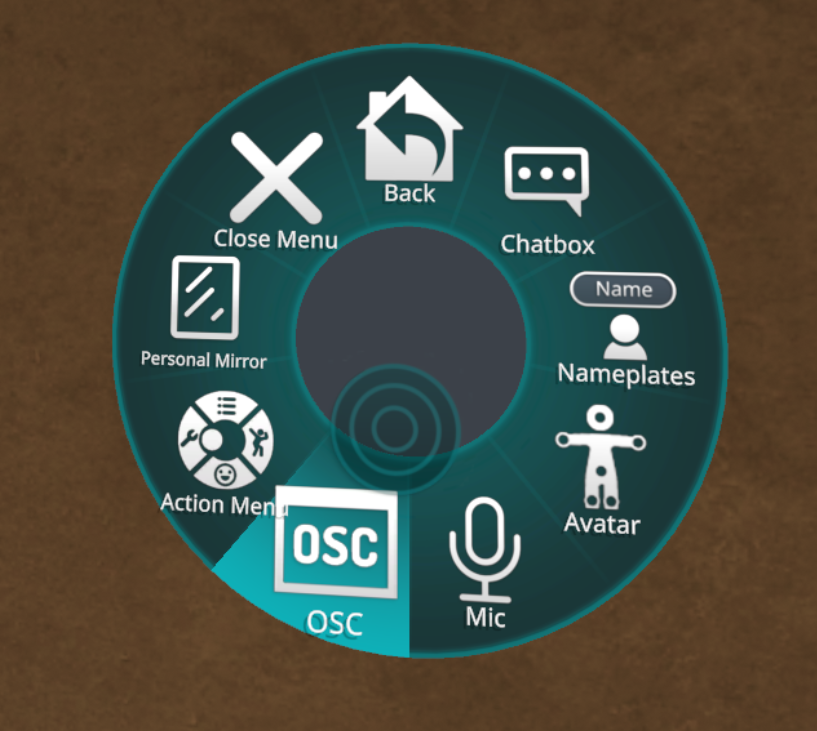
Make sure OSC is enabled
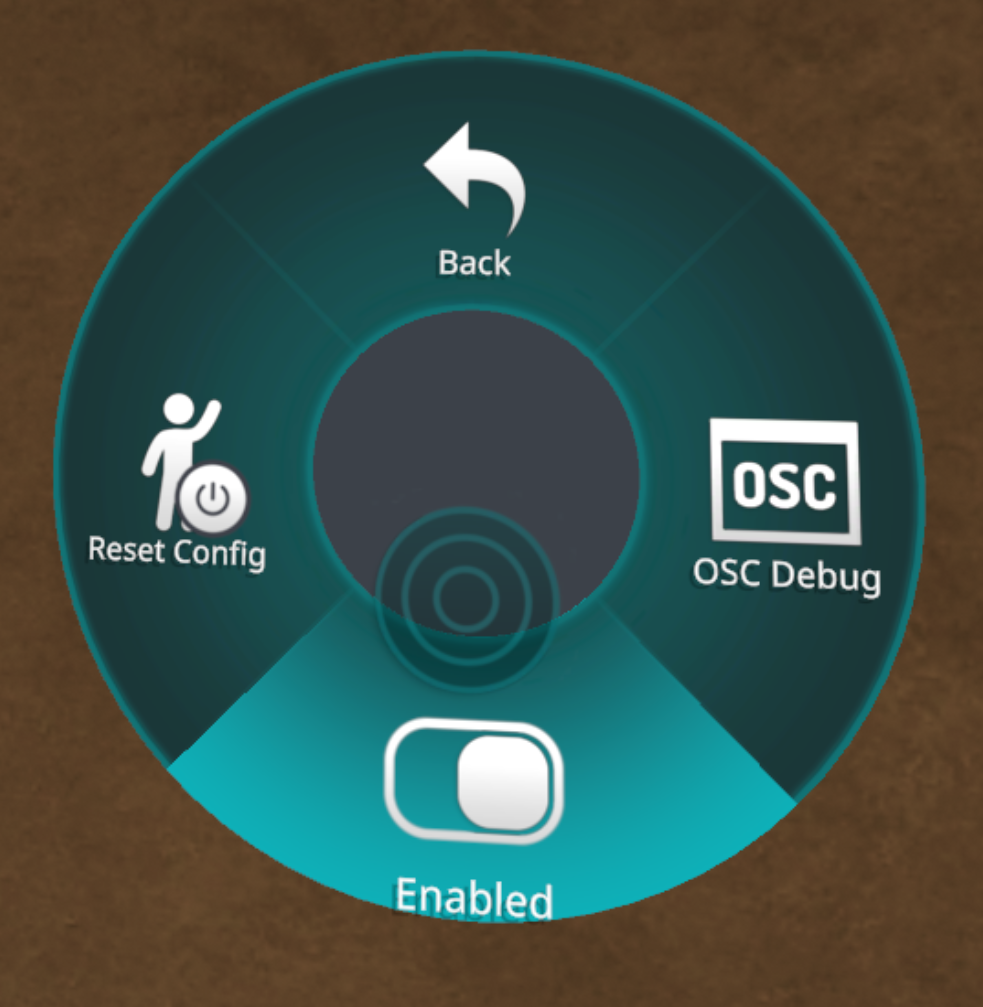
Now you may have to restart VRChat and VRCFT for the changes to take effect. After, eyetracking should be working as expected!
Alternative 3rd Party Setup: Baballonia
Our official eyetracking solution is recommended, but is not the only option available to set up. Baballonia provides eyetracking as well as face tracking when combined with a 3rd party tracker (e.g. Babble tracker, Venti Tracker, etc)
Head to Steam and download Project Babble: Baballonia
https://store.steampowered.com/app/4091970/Project_Babble_Baballonia/
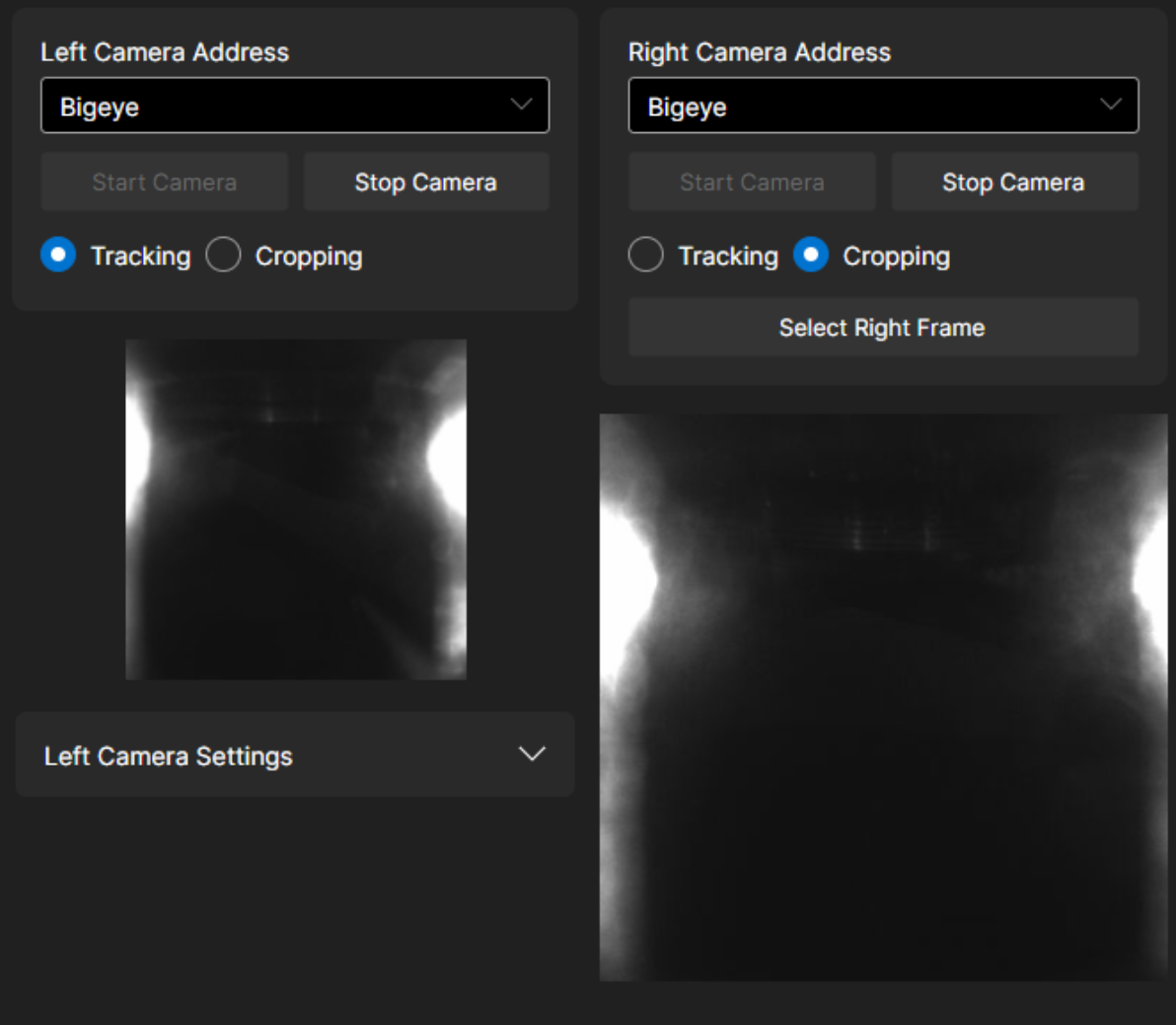
Under Cameras, select the "BigEye" device as the camera source.
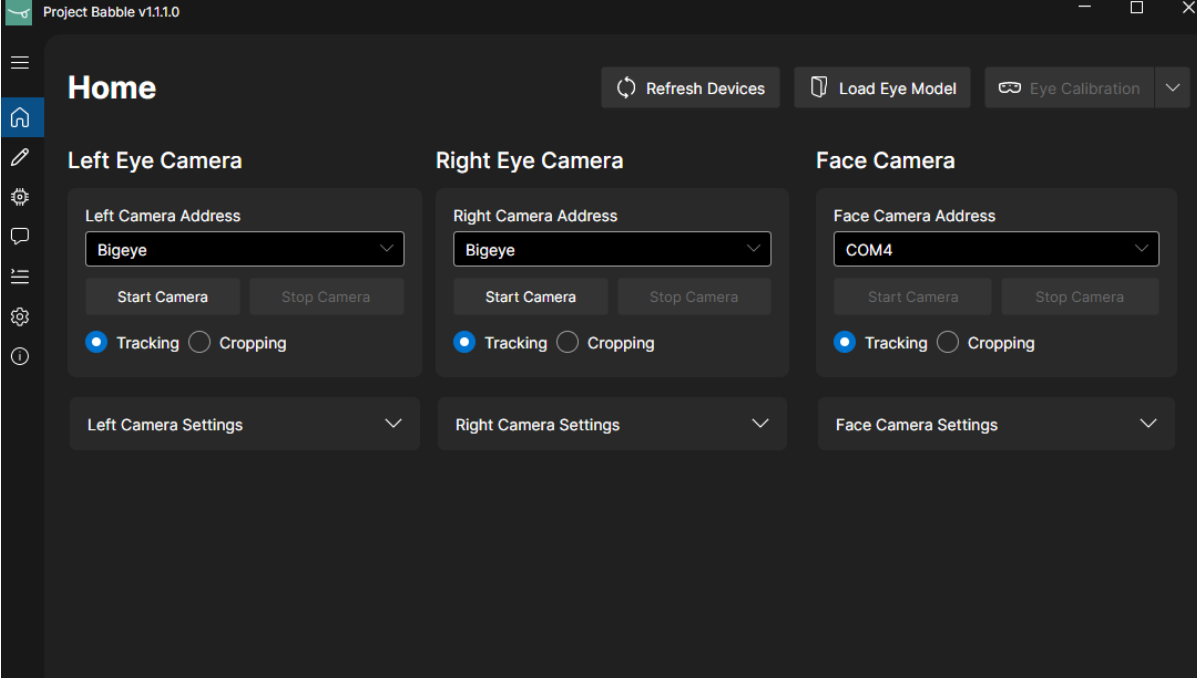
On the left is tracking mode, which will do the eye tracking. On the right is cropping mode. In here you can select only a certain part of the frame to be used. For the beyond, select the whole frame.
Then, head to the VRCFT settings page to configure the module mode. If you're just using eye tracking, select "Eyes" in the dropdown menu.
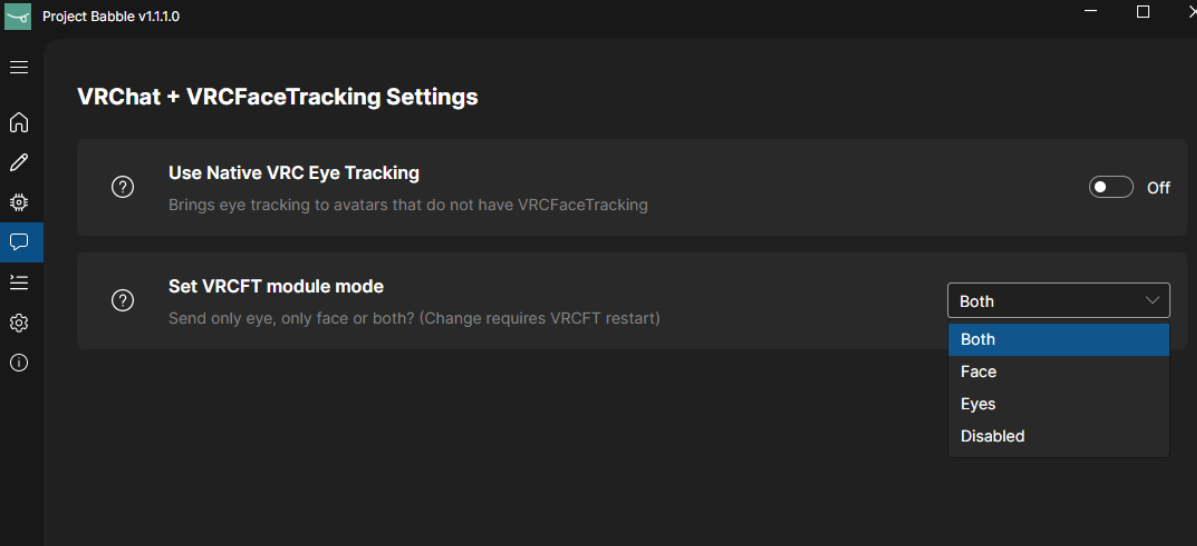
Afterwards, restart VRCFT. To use VRCFT with Baballonia, the VRCFT-Babble module must be installed.
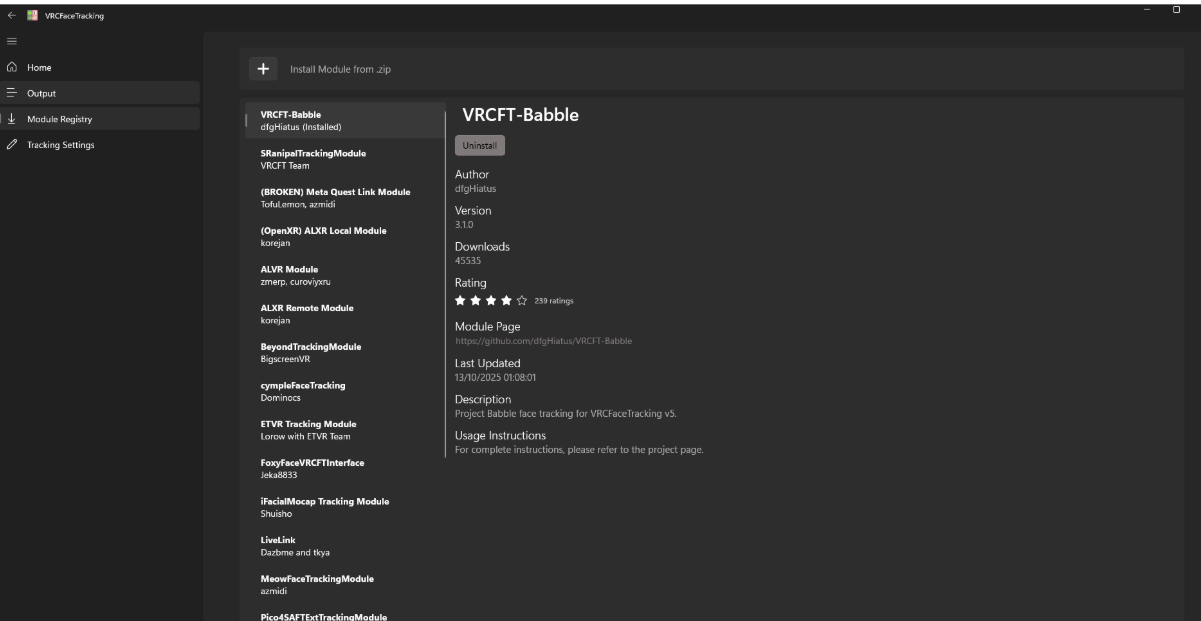
You cannot have both VRCFT modules enabled at the same time. Enable VRCFT-Babble, or enable BeyondTrackingModule based on the module you wish to use.
You can then perform calibration and follow the instructions within VR. Once complete and OSC is enabled in VRChat, you are ready to go!

If you encounter any issues with calibration, refer to the official Babble wiki or Discord server.