
Beyond Utility -- How to Download, Install, Use, and Troubleshoot.
Overview
The Beyond utility can be used for changing brightness & refresh rate. This tool enables you to tweak your Beyond's display brightness, refresh rate, LED color and more! You can also use it to update your Beyond to the latest firmware, which we highly recommend you do. Firmware updates generally help the Beyond run smoother, and help improve overall stability.
Installation Steps:
The first time you plug in your Beyond, Steam will show you a popup with a prompt titled "Using a VR Headset?"
Proceed to the next screen by clicking Install SteamVR.
The new popup will in fact install the Beyond Driver utility! Just click Install.
You can launch the Bigscreen Beyond Driver from either the Windows start menu, or from your Steam Library (ensure the "Tools" search checkbox is checked).
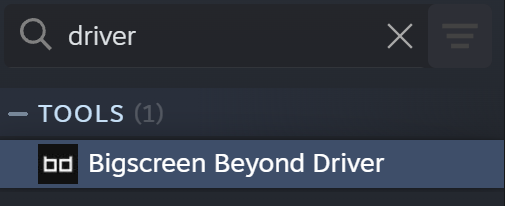
Accidentally clicked Close instead of Install SteamVR? You can paste this link steam://install/2467050 into your web browser of choice to install the Beyond Driver utility at any time.
Frequently Asked Questions related to the Utility:
Q: Which is better? 75hz or 90hz mode?
A: This one is up to user preference - 75hz mode will provide a sharper image by default, while 90hz can be better for fast-paced titles. Supersampling the 90hz mode via the SteamVR render resolution settings can help narrow the gap as well, if you have the performance overhead to do so.
Q: Is it safe to run the Beyond in overdrive brightness?
A: Yes. Increasing the brightness will increase OLED persistence, a sort of "motion blur" like effect, and Overdrive will lock the fan speed to 100%, but it is fine to run the Beyond this way in normal operation.
Error: Bigscreen HMD Utility is already running
If you receive the "Utility is already running" error when attempting to launch the driver, it may already be running and hiding in your system tray.
You can check the system tray in Windows (the
^icon towards the right of the taskbar).Clicking the icon that looks like a white computer monitor with a blue background will let you bring the app to the front, so you can use it.
If you'd like to run it manually, you have a few ways to do so. You can locate it with the Windows search bar, or in your Steam library (make sure that you have Tools included in the filter) by searching for
Bigscreen Beyond Driver. You can also navigate to the installation folder of the app, and find theBeyondHID.exewithin thebinfolder.If the Utility still fails to launch, find
BeyondHID.exein task manager and end the task manually, then relaunch.
Error: Invalid light house folder
If the utility can't find the correct light house folder, you won't be able to switch between 75hz and 90hz modes on the Beyond. This can typically happen if SteamVR is installed on a different drive other than the default (C:)
To fix this issue...
Open up steam and find SteamVR in your library, right-click or go to the gear icon, select Manage and then Browse Local Files
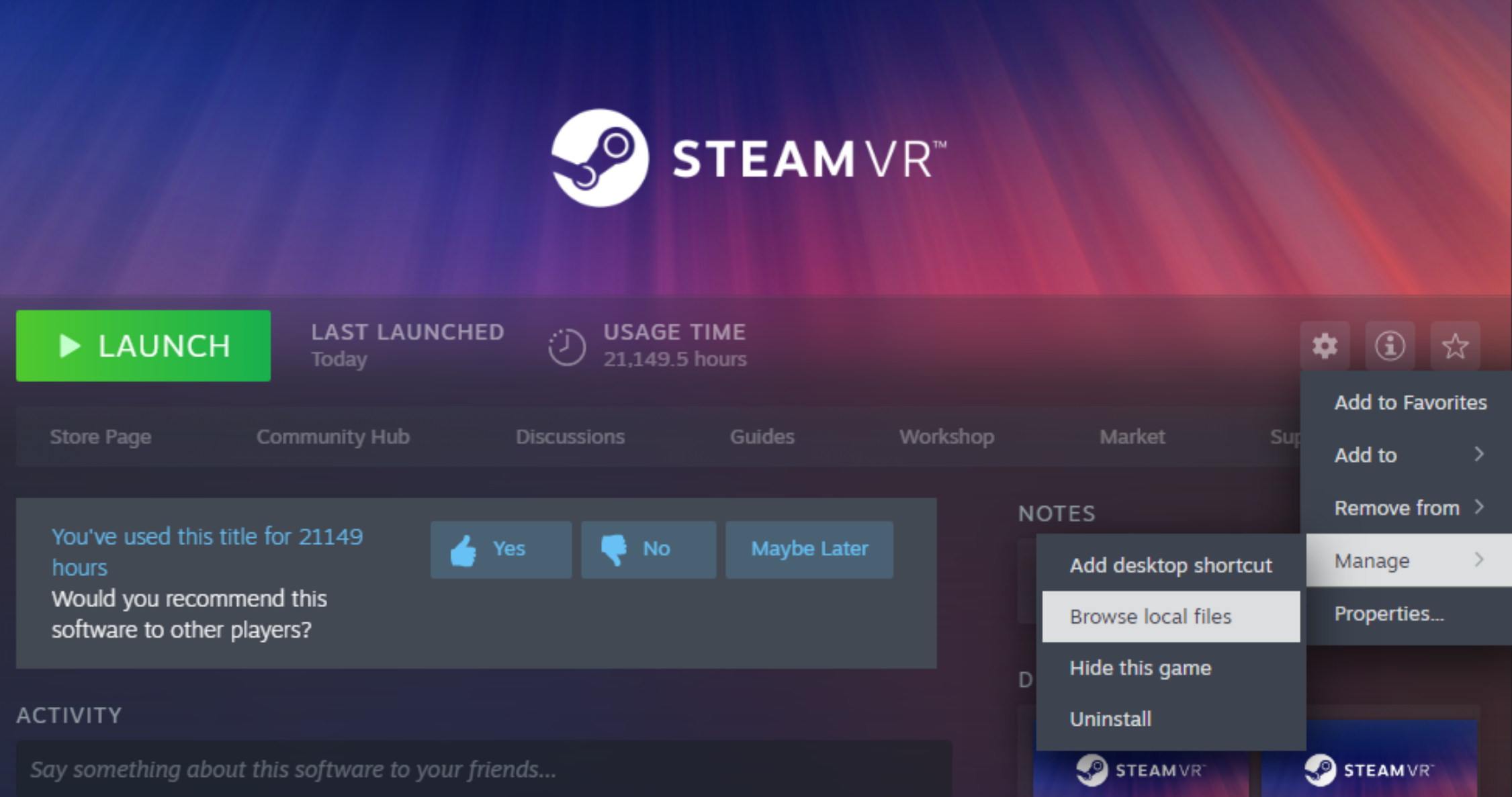
That should open a new file browser. Note the path to the directory you're in in the file browser's address bar.
Example path: C:\Program Files (x86)\Steam\steamapps\common\SteamVR\tools\lighthouse
Click the 'Change Lighthouse Folder' button in the Beyond utility and browse to that same folder.

This should fix the problem, and allow you to change the refresh rate without issue.
Error: Failed to download config backup.
If you encounter the "failed to download config backup" error when changing the refresh rate in the utility, possibly paired with SteamVR no longer detecting the headset, the headset config may be corrupted.
Not to worry, the utility saves a backup - and can be reflashed fairly easy.
Access the "Advanced settings" of the utility by clicking the version number at the bottom of the app.
Choose "Flash Lighthouse Configuration"

Navigate to your Bigscreen Beyond Utility folder
Select the lighthouse_config_backup_LHR-[Your headsets LH serial] and press open.
You can find your headset lighthouse serial at the top of the Advanced Settings page
Let the utility complete the process. The headset should now function normally.
If it does not, please contact us for further assistance!
DO NOT REINSTALL WINDOWS OR WIPE YOUR DRIVE FOR TROUBLESHOOTING
Backups of the config are contained within the utility and SteamVR. If they are deleted, they cannot be recovered.
The Utility freezes when trying to change any settings
If the utility freezes when trying to change a setting (such as the refresh rate) and does not present an issue, try...
Unplugging and replugging your Beyond
Restarting your PC
Uninstalling and reinstalling the Utility
If this does not resolve the issue, please contact us.
The Beyond utility is too small on my screen!
The utility does not scale with windows scaling settings, but you can force it to do so, see attached image! Note: this will only work if your windows scaling setting is above 100%.
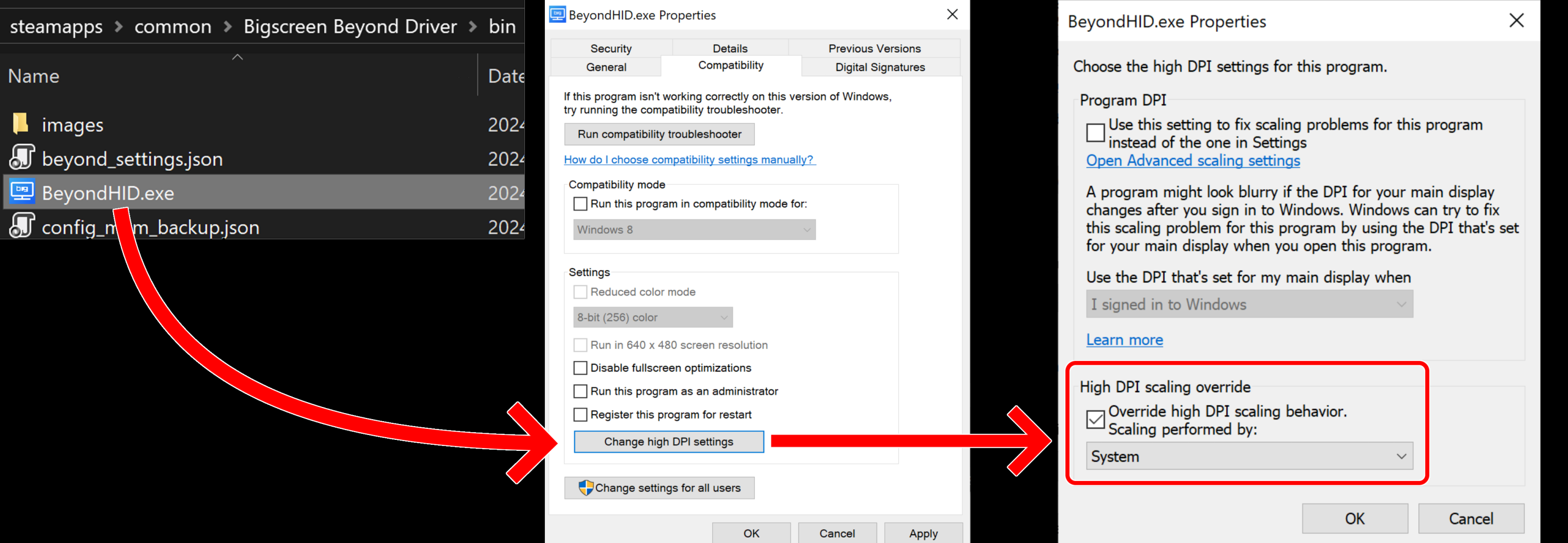
Locate your Bigscreen Beyond Driver folder
Right click BeyondHID.exe > Properties
Compatibility > Change High DPI settings
Click "High DPI scaling override", check "Override high DPI scaling behavior"
Set "Scaling performed by:" to "System"
Click OK
Advanced Settings
By clicking the utility version at the bottom of the app, you can access the advanced settings. Proceed with caution, as modifying these settings can impact how your headset functions. Only adjust if you know what you are doing.
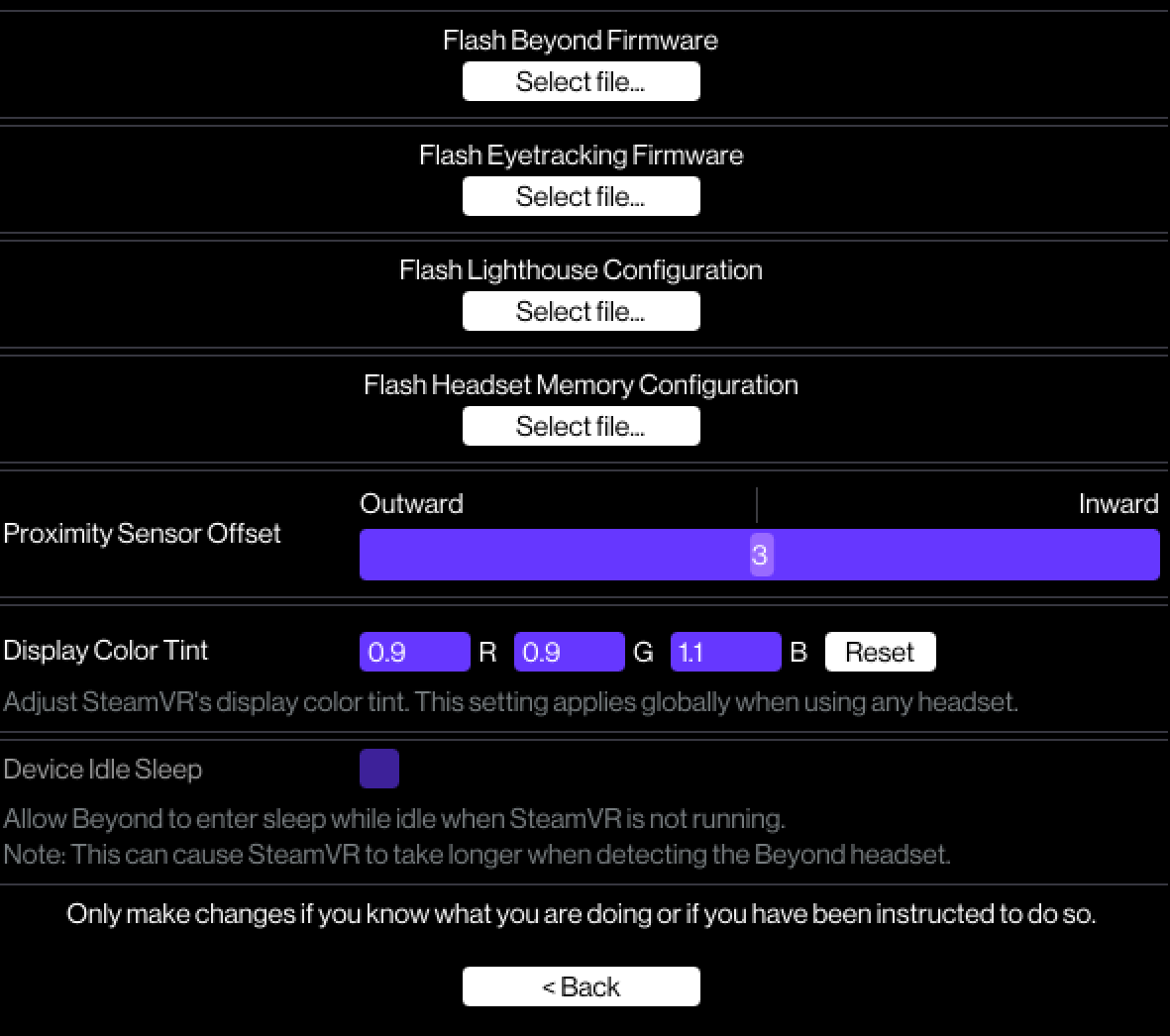
Flash Beyond Firmware
Flashes the main headset firmware. Useful if the configuration corrupts, the firmware update fails, or if you notice unusual behavior after an update. Backups are kept in the utility under latest.beyondfw
Flash Eyetracking Firmware
Flashes the Eyetracking firmware for the eyetracking cameras. If you're encountering issues with the cameras being stuck on "loading" or failing to detect, you can try reflashing this. Backups are kept in the utility under eyetracking_firm.dfu
Flash Lighthouse Configuration
Flashes the lighthouse configuration of the headset. Backups are kept in the utility under lighthouse_config_backup_LHR-[LH Serial]. SteamVR also keeps a backup.
DO NOT Flash another lighthouse devices configuration file to the headset.
Flash Headset Memory Configuration
Flashes the headset memory. Backups are kept in the utility under headset_memory_backup_[Headset SN]