FAQ - Common issues with using your Beyond
Overview
This article contains a variety of common issues you may encounter that are a bit too short to warrant a dedicated article! This list may be expanded with new tips and tricks over time.
The lenses fog up easily when wearing the Beyond
If your lenses start to fog up when you first put on your Beyond, don't worry, this is normal - the lenses and displays are cold, and will warm up to the proper temperature after ~10 minutes or so. After that, wipe down the display with the included microfiber K-Cloth to remove the fog.
Do I have to do this every time I use the Beyond?
Nope! If the Bigscreen Beyond is left plugged into the PC in standby mode (SteamVR closed, with the front LED "pulsing"), it will keep itself warm to prevent the lenses from fogging up when you put it on next time.
If your PC isn't on normally before a VR session, starting it up 15-20min before your session begins should be sufficient to get it warmed up in time.
Is it okay to leave the Beyond plugged in constantly like that?
Yep! The Beyond is designed to be used that way, and it won't cause an issue.
But, if you'd prefer to unplug the Beyond after each session, that's fine too. The USB-C plug is designed to withstand a long lifespan of connecting and disconnecting.
How to extend/make the Beyond cable longer
Out of the box, the Beyond's cables can reach a total distance of about 5.5 meters. There are 50cm long cables coming from the linkbox and connecting to the PC, and a 5 meter fiber optic cable from the linkbox to the Beyond. If that isn't sufficient for your use case, though, there are a few options to extend the cable.
Caution: Extending the Beyond's cables makes the headset more difficult to power. This may cause issues, particularly when the headset is run at high brightness settings. From user reports, 10m extensions seem to work, but lengths beyond that can be hit or miss.
Third-Party Fiber Optic Cables
One option to extend the Beyond's cable (by replacing it) is to buy a Fiber optic USB-C cable from another vendor. A tested variant includes the 33' FIBBR cable, seen here:
https://www.amazon.com/Full-Featured-Compatible-Business-Meetings-Projectors/dp/B0CZDZR13Y?th=1
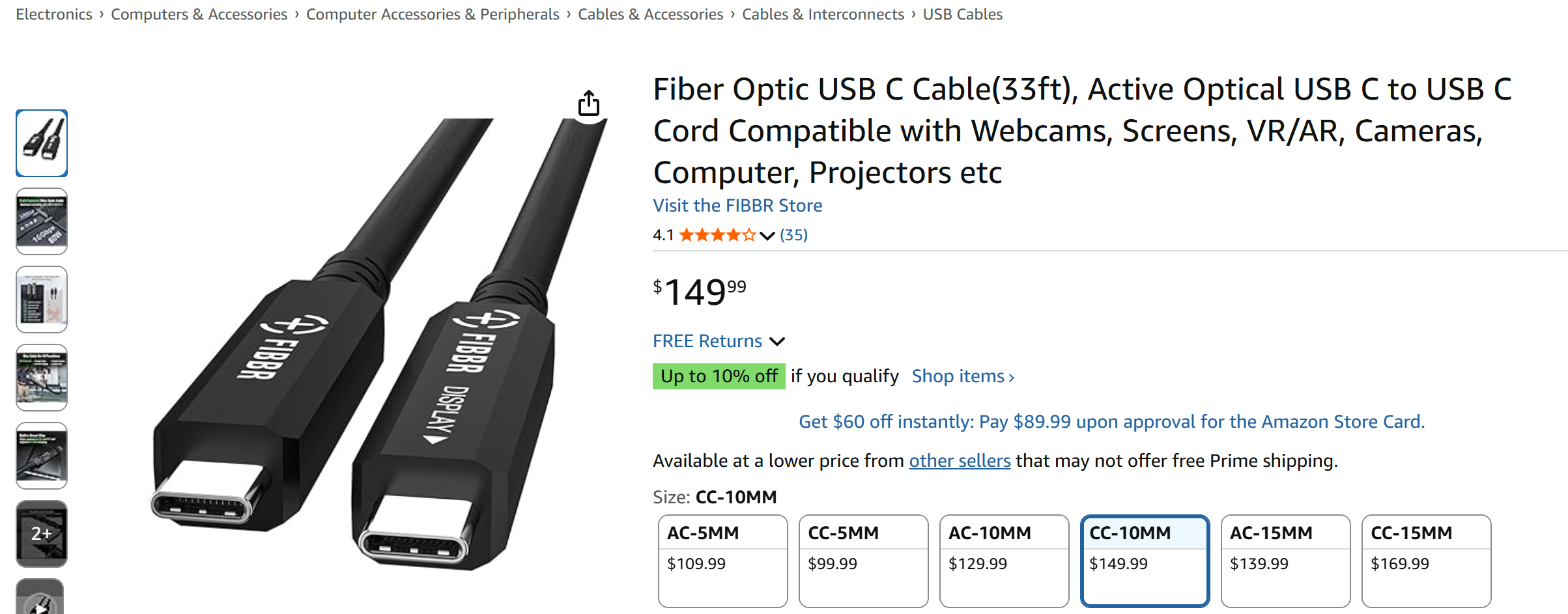
The requirements for the alternate cable are fairly specific - it must be able to do four DP 1.4 HBR3 lanes + enough power. Many fiber optic cable options only support USB-C, not DP 1.4, or lack the required power output.
In order to get the FIBBR one to fit into the linkbox, some of the housing around the cable's plug will have to be removed to make it slimmer.
Extending the Linkbox Cables
It's possible to extend the three cables from the linkbox - to do so, you'll need three things:
A fiber optic Displayport cable, such as this one.
An active DisplayPort repeater, such as this one.
And a pair of active USB extension cables, such as this one.
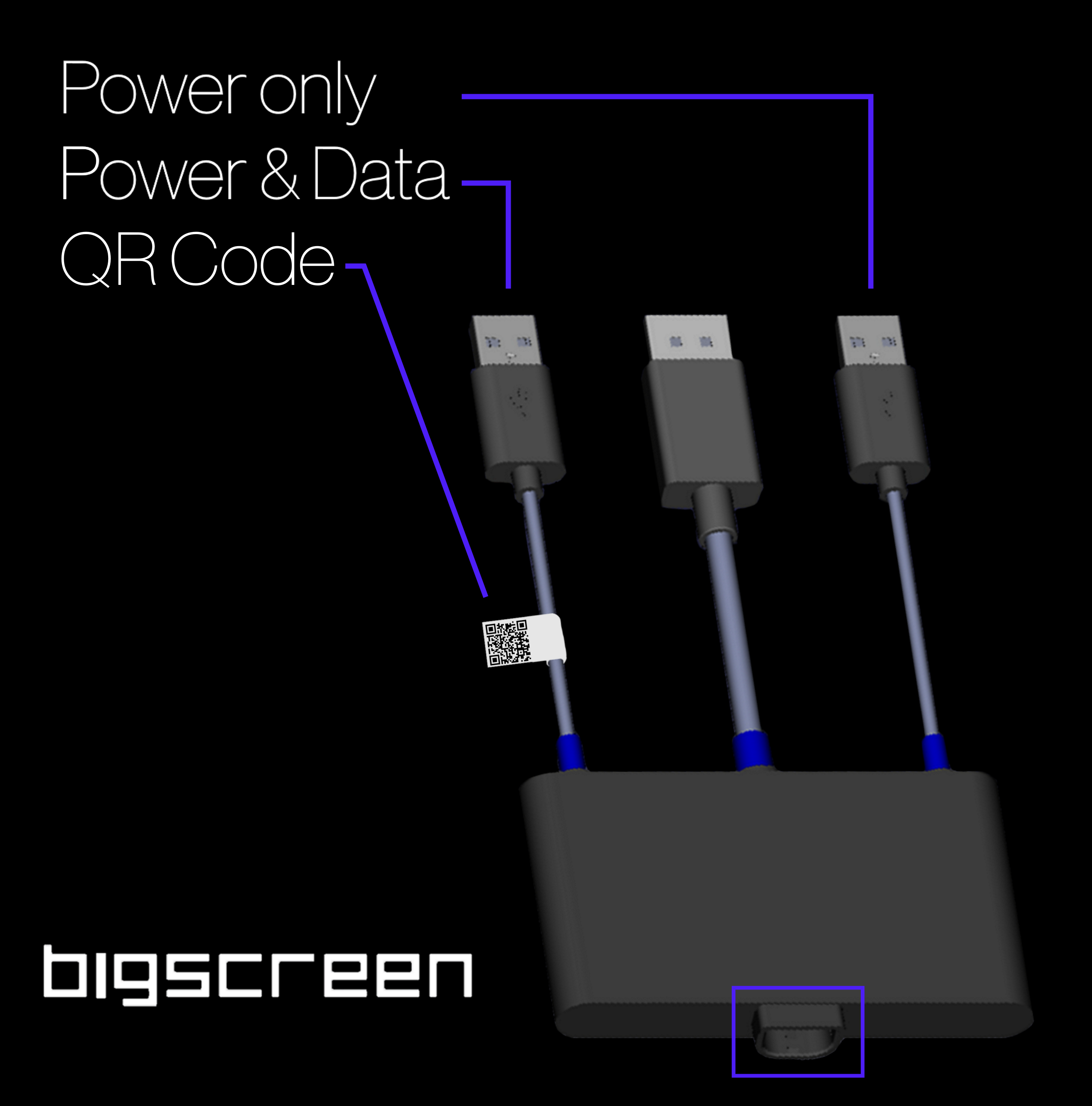
Please note that the Power-Only cable from the linkbox can go into a powered USB hub or 5v2a power brick (like a phone charger). The cable with the QR code is the Power + Data cable, and it needs to plug directly into your motherboard, a USB hub, or a PCI-E USB expansion card. (If it's not, then your computer won't detect the Beyond.)
Using a small extension cable to reduce stress on the main tether
If you don't need much extra length, but want to help reduce stress on your primary cable near where it plugs in to the headset, a very short (1.64ft or shorter) extension cable can work, such as this one.
The noise from the fan is a little loud or annoying
If the fan inside the Beyond is making a distracting buzzing, squealing, or whining sound, it may be seated a little off-balance or have some dust clinging to the blades.
To address this:
Take your cushion out. This often immediately quiets the fan. Put the cushion back on and it should be fine this way.
Or, take your cushion out and tap one of the magnets of the cushion on your serial number/Bigscreen logo. This will nudge the fan back into the proper balance, and can shake loose any dust that might be sticking to the blades and causing it to wobble or drag while it spins.
The best spot on the BIGSCREEN logo to tap is smack dab in the middle -- so try and aim the magnet at the "SCR" in BIGSCREEN
For particularly stubborn fans, holding the Beyond in one hand and gently smacking it into the palm of your other hand can help reset it to the correct position.
If the behavior persists...
Note the fan speed. The fan is expected to be audible, especially at higher speeds (80-100%), and may make a slight buzzing during rapid movements. It's especially likely at full speed (which will happen when the headset's brightness is set to overdrive mode).
If the fan noise still seems excessive, or it was much quieter previously and has gotten louder over time, please contact us and we can investigate further. When you do, if you've tried the steps above already, please let us know!
How to install the top strap of the Beyond
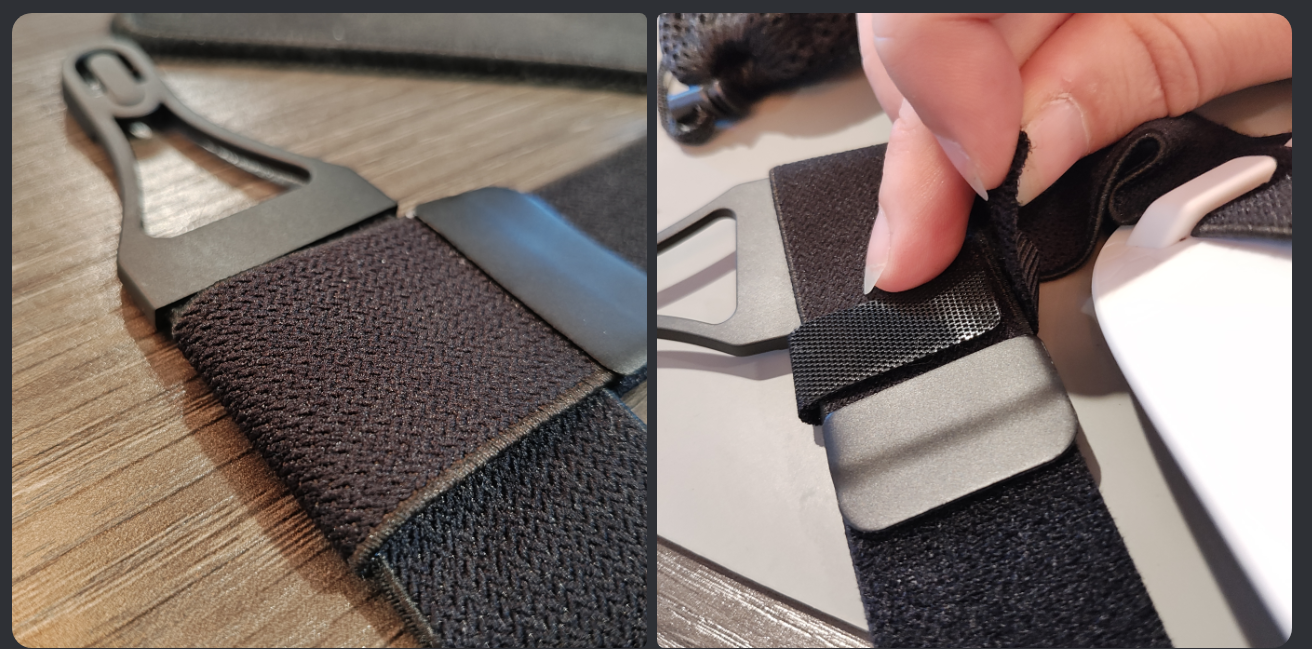
The Beyond's soft strap includes an optional top strap accessory that can help improve comfort - some users may find it beneficial for the audio strap as well, though it's usually not required.
To install the top strap:
There's two sides with velcro. One has a "short patch" of velcro, while the other has a "long patch".
Take the "short patch" end and loop the strap end under one side of the soft strap, then around so the two velcro parts meet and attach.
Do the same with the "long patch" end, but stick it anywhere on the long patch of velcro.
Put the strap + Beyond on your head, and unstick the "long patch" end to adjust it to a comfortable length.
Wrap the "short strap" (tiny velcro strip that came bundled around the top strap) around the base of the "long patch" end to hold it in place.