
FAQ - Audio Strap
Overview
If you're having issues adjusting or using your Audio Strap, this page contains all info related to it - it's also highly recommended to check out the official setup guide for additional information: https://www.bigscreenvr.com/myaudiostrap
Common Fitment issues
The USB-C cable from the audio strap is too short, and won't reach the headset!
If the USB-C cable from the audio strap can't reach the Beyond, don't panic! There's extra slack stored inside the audio strap - as such, it can be safely pulled out (try pinching the plastic where the cord exits a little) to the desired length.
You can push excess slack back into the strap, or wrap it around the arm afterwards.
Video demonstration:
The Audio doesn't seem to be good quality, and floats off-ear too much.
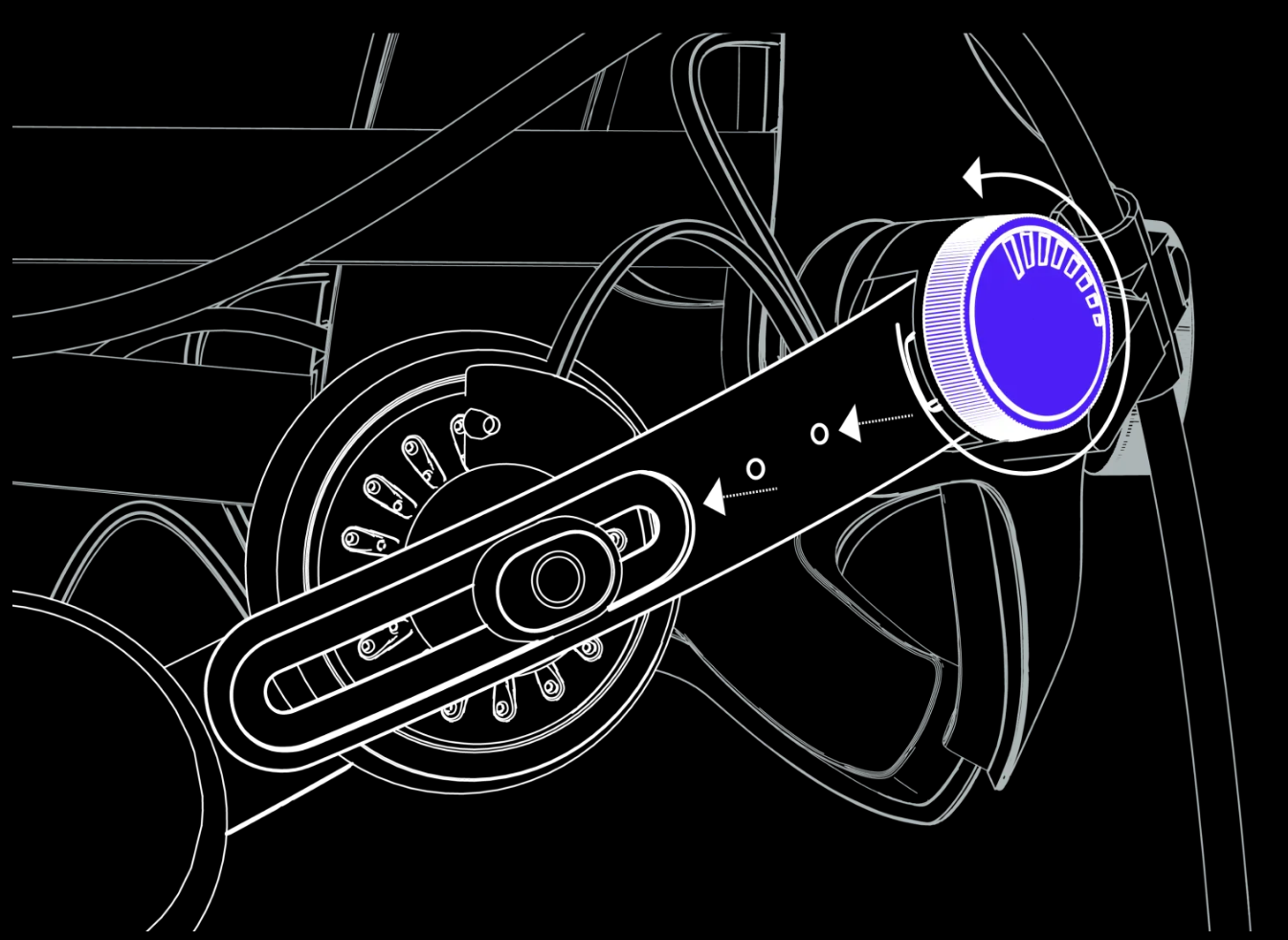
If the Audio Strap drivers seem to be lacking bass or don't sit properly on your ears, a common adjustment that's easily overlooked involves rotating the dials attached to the sides of the speaker arms.
To adjust how close the speakers are to your ears, which is essential for immersive sound, look for the side knobs on the speaker arms. Gently rotate these knobs to move the speakers closer to or further from your ears. This fine adjustment allows you to achieve the perfect balance between comfort and audio quality.
The Audio strap seems too narrow, or too short even at maximum extension.
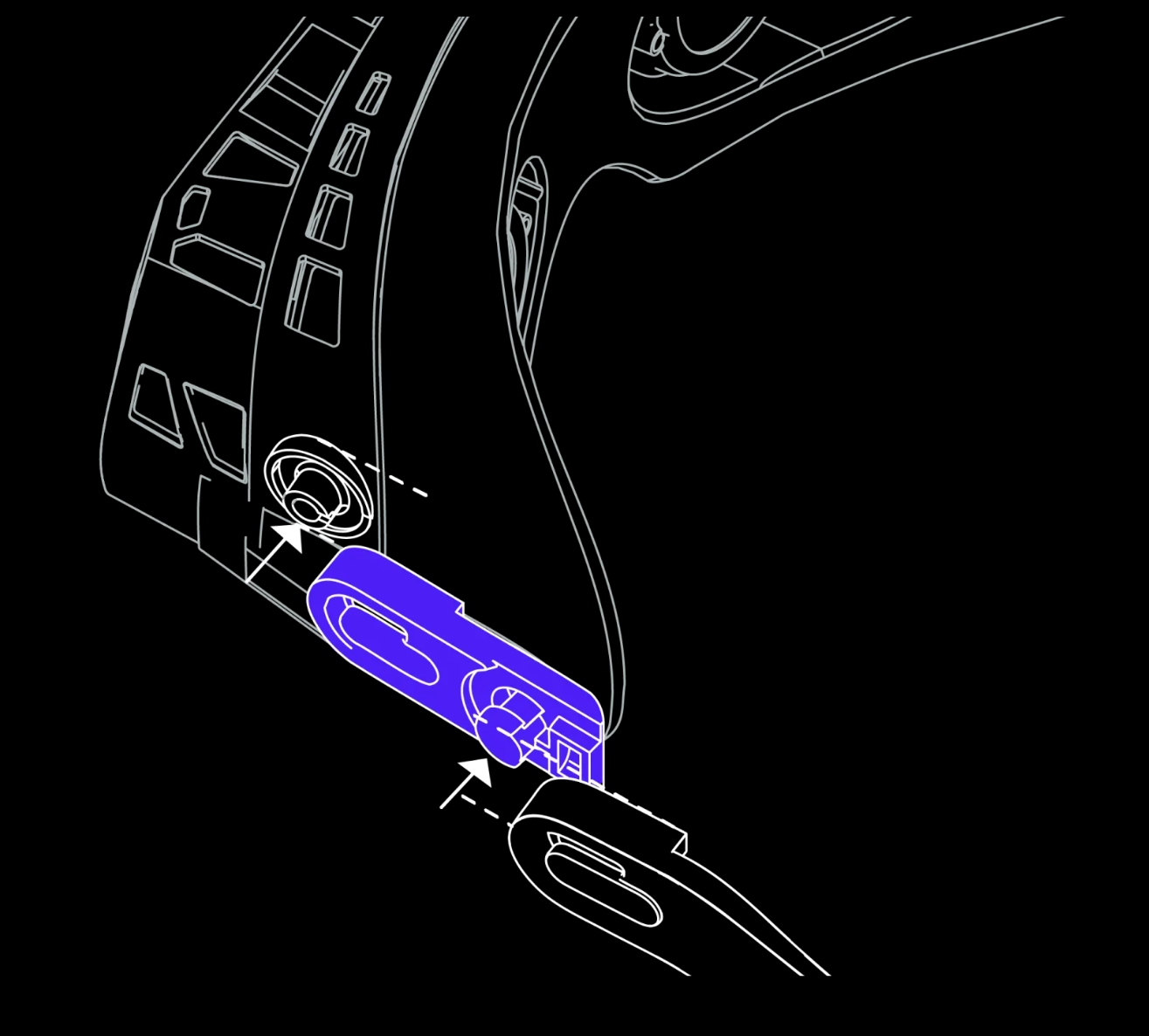
If the audio strap doesn't seem to be large enough to fit comfortably, make sure you try out the included audio strap arm extensions included in a small bag inside the box - this can help increase the overall width and length in order to maximize comfort.
To install, first attach the extension onto the headset's hinge. Then, connect the audio strap arm to the extension. After assembly, perform a gentle pull test on the extended arm to ensure it's securely fastened and properly aligned.
The Audio Strap drivers pop off while putting the headset on and off.
If the Audio strap drivers pop off frequently, make sure you're swiveling the drivers up onto the strap while putting the Beyond on your head or taking it off, to ensure no excess pressure is being placed on the drivers. If the drivers pop off while in normal use frequently, please contact us.
One of the drivers was popped off in the box. Should I be worried?
If one of the drivers was disconnected from the strap during shipping, no need to worry! They're intentionally designed to pop off safely instead of snapping off. As such, they can be snapped back in place with no additional issues.
Troubleshooting your Audio Strap
I hear buzzing, popping, or other unusual audio while wearing the Audio Strap.
If you're hearing strange noises from your Audio Strap, it could be a sign of poor power delivery. To help ensure reliable power, please try plugging the power-only cable from the linkbox into a 5v2a power brick (phone charger) or powered USB hub.
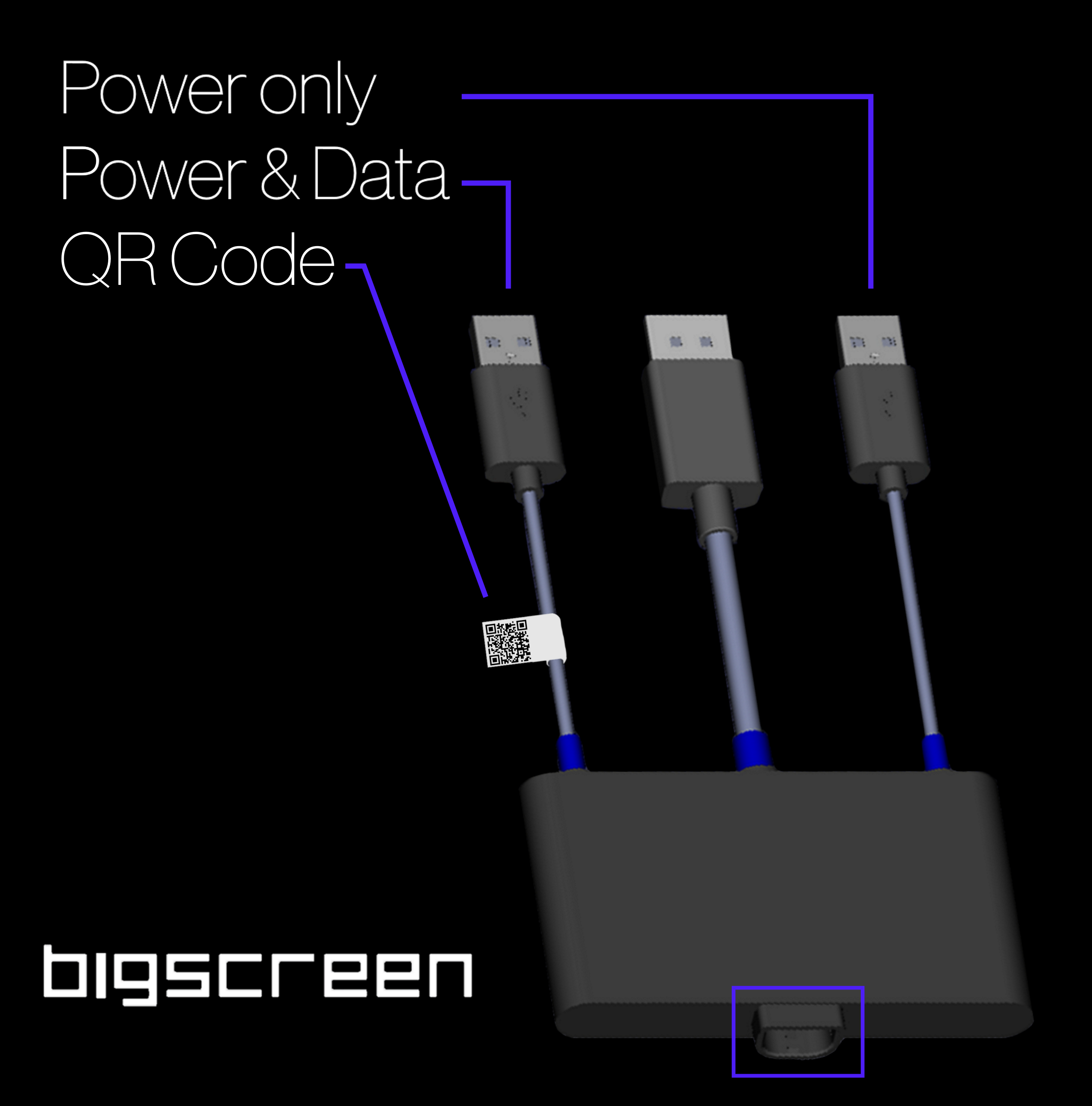
If the behavior persists, please contact us. To help save time, please test and provide the following info...
Does the audio quality remain the same when plugging the Audio Strap into a different device (such as your PC directly, or your phone)
If you plug a different audio device into the Beyond (i.e USB-C headphones, or headphones with a 3.5mm to USB-C DAC), do you also hear buzzing/popping/etc noise from it?
Does the behavior persist if the Beyond is plugged into a secondary machine? (if available - it does not have to run the Beyond, just connect the USB cables & see if the auxiliary port functions correctly)
I hear "static blasts" from the Audio Strap
If the Audio Strap emits a loud, random burst of static, the culprit can often be software related.
If you're using virtual mixers such as Voicemeeter, try disabling/uninstalling and proceeding.
If you're using NVIDIA HD Audio driver, try uninstalling and reinstalling that as well.
Head to windows sound settings, playback devices, advanced tab.
Disable "Allow applications to take exclusive control of this device"
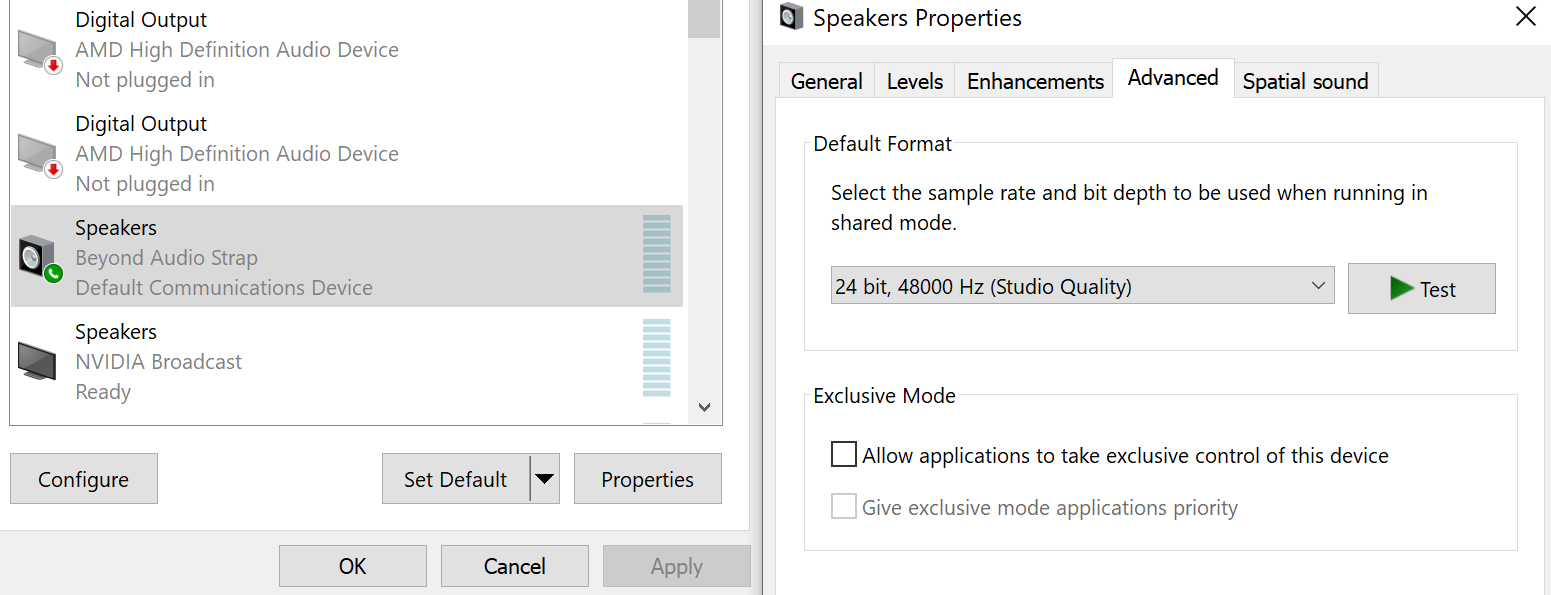
Other potential culprits are still being investigated.
Windows Settings to Tweak
Always the first thing I follow-up with as it can still be Windows related although more rare these days
🎧 Audio Fix Guide for Bigscreen Audio Strap
If your audio sounds weird (echoey, distorted, super bassy, or just "off"), follow these steps to fix it in Windows!
---
1️⃣ Open Sound Control Panel
• Right-click the 🔊 speaker icon in your taskbar
• Click ‘Sound Settings’ or ‘Sounds’
• Then scroll down and click ‘More sound settings’ or ‘Sound Control Panel’
---
2️⃣ Find Your Audio Strap Device
• In the Playback tab, look for "Speakers (Beyond Audio Strap)"
• Right-click > Properties
---
3️⃣ Disable Audio Enhancements
• Go to the Enhancements tab
• Tick "Disable all enhancements"
• Click Apply
---
4️⃣ Turn Off Exclusive Mode
• Head to the Advanced tab
• Uncheck:
🔲 Allow apps to take exclusive control
🔲 Give exclusive mode apps priority
• Click Apply
---
5️⃣ Set Default Format
• Still in Advanced tab
• Choose: 16 bit, 48000 Hz (DVD Quality) or 24 bit, 48000 Hz (Studio Quality)
• Avoid higher settings unless needed
• Click Apply
---
6️⃣ Disable Spatial Sound
• Go to the Spatial Sound tab
• Set it to Off
---