
Controller Tracking Issues
Overview
If you're experiencing weird behavior from your controllers, such as unexpected jitter, or having them fly off into the distance at random, there can be a variety of culprits - power delivery, pairing issues, wireless interference and more. This page documents potential fixes.
Common first steps:
If the tracking on your controllers is behaving strangely, and you own Vive or Tundra Trackers, try unplugging the dongles for your additional trackers, and then re-pair your controllers. This will make sure that the controllers pair to the headset, which will usually give better controller tracking stability. Once you're done re-pairing the controllers, you can plug your extra dongles back in.
Double-check that you plugged in the cable the right way as shown in our "My Beyond: Getting Started Guide". Don't forget to make sure that the cable is fully plugged in at both the linkbox and the headset side -- the port on the linkbox especially is quite deep. Both ends should make a light "click" sound when they're fully seated.
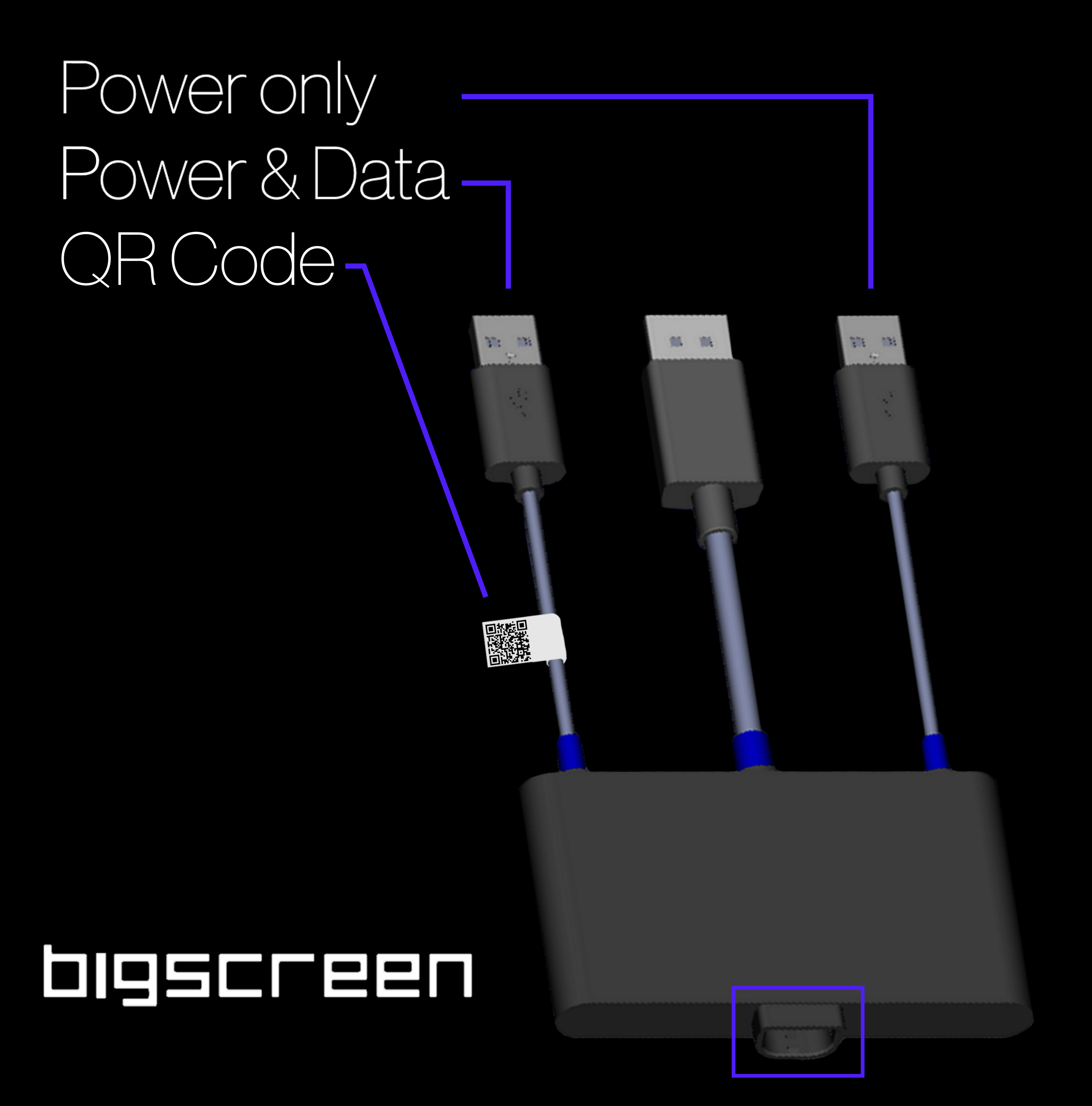
Make sure both of the USB-A cables of the linkbox are plugged directly into USB 3.0+ (blue or red in color) ports on your motherboard, externally-powered USB hub, or PCIE-USB card. Please note that USB hubs that aren't externally powered by their own AC adapter won't help.
If you have many USB devices plugged in, some motherboards may not be able to supply enough power to all of them. Please try plugging in the "Power Only" USB-A cable of the linkbox into a separate 5v 2a USB power brick.
Here is a power brick that has worked well for some users.
When pairing controllers, remember to always pair the left controller first, and the right second. This will usually result in the left controller pairing to the radio that's built into the left side of the headset, and vice-versa.
Advanced Tweaks - BIOS and more
If one controller keeps resetting or losing tracking
If a single controller or dongle repeatedly drops out while everything else checks out fine, try manually reassigning that controller's pairing to its dongle in SteamVR's OVR Advanced Settings before assuming a hardware fault - a stuck driver/radio state is a common cause, and this often clears it without any part replacement.
If a controller shows as "paired" (solid LED) but isn't sending any tracking data at all, a full PC reboot resolves this in most cases - it's usually a stuck radio state, not a defective controller.
To isolate whether the problem is on the headset's radio side or the controller's own side, try pairing a different/spare tracker to the same radio if you have one available - if the spare also fails to track properly, that points to the headset's radio rather than your original controller.
Coming from another headset?
If you're moving from an Index or another SteamVR headset, a controller can sometimes retain a stale Bluetooth-puck dongle pairing from that setup. Unplug any old dongles from your previous headset and re-pair your controllers fresh to the Beyond's own radios.
iRacing specifically
If a controller isn't appearing inside iRacing via OpenXR, this is a known iRacing/OpenXR compatibility issue with documented community workarounds, not a defect in your controller or headset.