
Grey Screen (Tracking loss)
Overview:
If your Beyond is displaying a grey screen, either temporarily or permanently, this typically means the headset is losing tracking. There can be a variety of culprits, from base stations, to software/hardware interference, to power delivery issues.
Check your Base Stations
At least one base station is required to use the Beyond, and must have visibility to its side or front.
Ensure your base stations are powered up and have a green LED indicator.
Check how far away your base station is from your headset - they work best if they're positioned at least 1 meter away. They can work when closer, but you may encounter issues. Within 20cm tracking is likely to be unreliable.
If the tracking issue seems intermittent and you have multiple base stations, try having only one plugged in at a time and see if the behavior changes. (This can help identify if certain base station placements have more issues with reflections in the environment as well).
Base station 1.0s need to be set to channel "A" to perform this test.
Something to check as well is how you have your base stations set up. A nice application to see if you are getting ideal coverage is this: https://nono-00.itch.io/base-station-fov-viewer
Check for sources of IR reflections in the environment
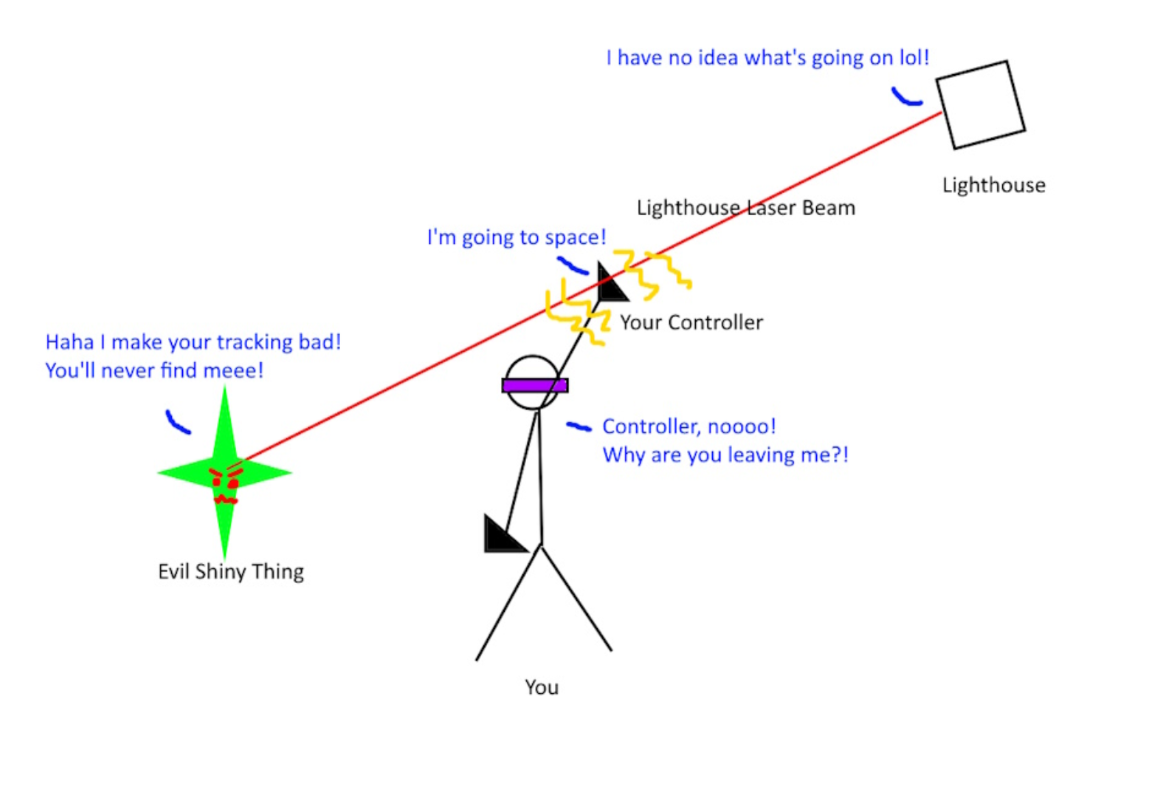
Lighthouse tracking works by sending out IR laser beams from each base station into the room. Tracking diodes on the headset see these beams and use it to determine where the headset is in space.
But what happens if that laser beam hits a reflective object and then hits the Beyond? That's known as a "back facing hit", and SteamVR needs to filter these bad hits out to maintain accuracy. Too many back facing hits, and tracking loss will suffer! Because of the small physical size of the Beyond, it can be a little harder to filter out bad hits with the tightly clustered tracking diodes compared to the Index.
To identify these, you can generate a SteamVR system report (SteamVR>settings>create system report) and search the log for "back-facing-hits" (no quotes). Normal environments will have hundreds or low thousands over a short session, but 10,000, 100,000, etc can indicate a strong reflection source in the room.
Below is a useful video for detecting reflections in a room.
This method may not show all reflective surfaces since base stations do emit IR lasers however this method can at least help find major sources.
Reflections in general can also cause controller tracking issues. This can also be a useful way to discover reflection sources themselves.
Shifted Playspace Issue
If for some reason your place space is shifted/shifting please see below on possible reasons why:
Remember to take off the beyond plastic film that's on the front of every HMD
You may need to uninstall the oculus(meta) app, virtual desktop and/or open composite
Check for strong reflective surfaces. These include mirrors, windows, glass PC side panels, monitors, and other such objects.
Reflectors in the right place, especially during room setup, can cause wacky playspaces. If such objects are present during room setup, the behavior can persist until the object is removed and room setup is re-ran.
Reduce USB Congestion or Improve the USB Controller
Virtual reality is a rather demanding task for USB ports, requiring steady and reliable high speed data and power. Unfortunately, not all motherboards (even high end ones!) handle this task well.
The Asmedia USB controllers commonly found on many consumer motherboards, especially on older motherboards for AMD CPUs, can particularly tend to struggle with VR."
To help pin down the source, try removing all USB devices except mouse, keyboard, and Beyond. If that still doesn't do it, a PCIE USB Expansion card can make an excellent investment, if your computer has a PCIE slot free. Be aware of the model you purchase, though -- not all USB controllers are well-suited for VR.
Fresco Logic USB controllers are pretty good, and the FL1100EX model has been specifically tested with VR by Valve.
This Allegro expansion card is known to work well: https://www.sonnettech.com/product/allegrousb3pcie4port.html - but there are some other options, too. If you'd like to see the cards that Valve has tested, and whether they passed or failed, you can visit their list here: https://developer.valvesoftware.com/wiki/Valve_Index/USB_3.0_Controller
One more point -- if you do choose to purchase that Allegro card, don't forget to set the PCIE slot it's in to Gen2 in BIOS to keep it happy!
If none of those are available in your market, you can also try recent Renesas or Asmedia models (older controller models should be avoided). Any expansion cards with a Via USB controller onboard should be avoided, however, as those are consistently incompatible with VR
Try a Link Booster
If you've already checked base stations and reflections and the grey-screening continues, a Link Booster (installed directly between the linkbox and the cable) is the single most effective fix we've seen for this - it often resolves grey-screening even when other steps alone hasn't, and commonly clears up any accompanying audio crackle or eye-tracking flicker at the same time, since they tend to share the same root cause. Make sure it's placed directly between the linkbox and cable - placed elsewhere, it won't help.
Check for electrical interference
The Beyond can be sensitive to various sources of wireless and electrical interference. This can result in grey screening, both intermittently and permanently.
If you have Sim racing gear (such as direct drive wheelbases, buttkickers, motion actuators, belt tensioners etc) or any other high powered items in the room, see the Tracking Loss (Grey-screening) While Using Direct Drive Wheels (And More) help article.
Wireless charging mousepads (Logitech PowerPlay and similar) are an especially common and easy-to-miss source - a grey-screen pattern that repeats roughly every 23 seconds is a strong tell. This can persist even after replacing cables/linkbox, so it's worth checking early rather than after an extensive hardware swap.
Ambient light through the clear shell can also cause grey-screening, not just wireless interference - ceiling lights, RGB/smart lighting (especially with a red component), streaming LED strips, or even light bounced off a wall. If this matches your setup, a black shell swap (self-installable) is the standard fix.
Wireless interference from certain wireless devices and routers. Anything that transmits on the 2.4ghz band could be a source of interference, including Bluetooth and some wireless gaming headsets, WiFi routers, and some household smart devices (like smart lightbulbs). Try testing with them powered down or moved into a different room.
Your PC's own onboard WiFi card is an easy-to-overlook internal source - temporarily disabling it is a quick test.
As a final option, testing in a different room or building, or on a different PC, can help rule out hard to pin down electrical interference issues.