
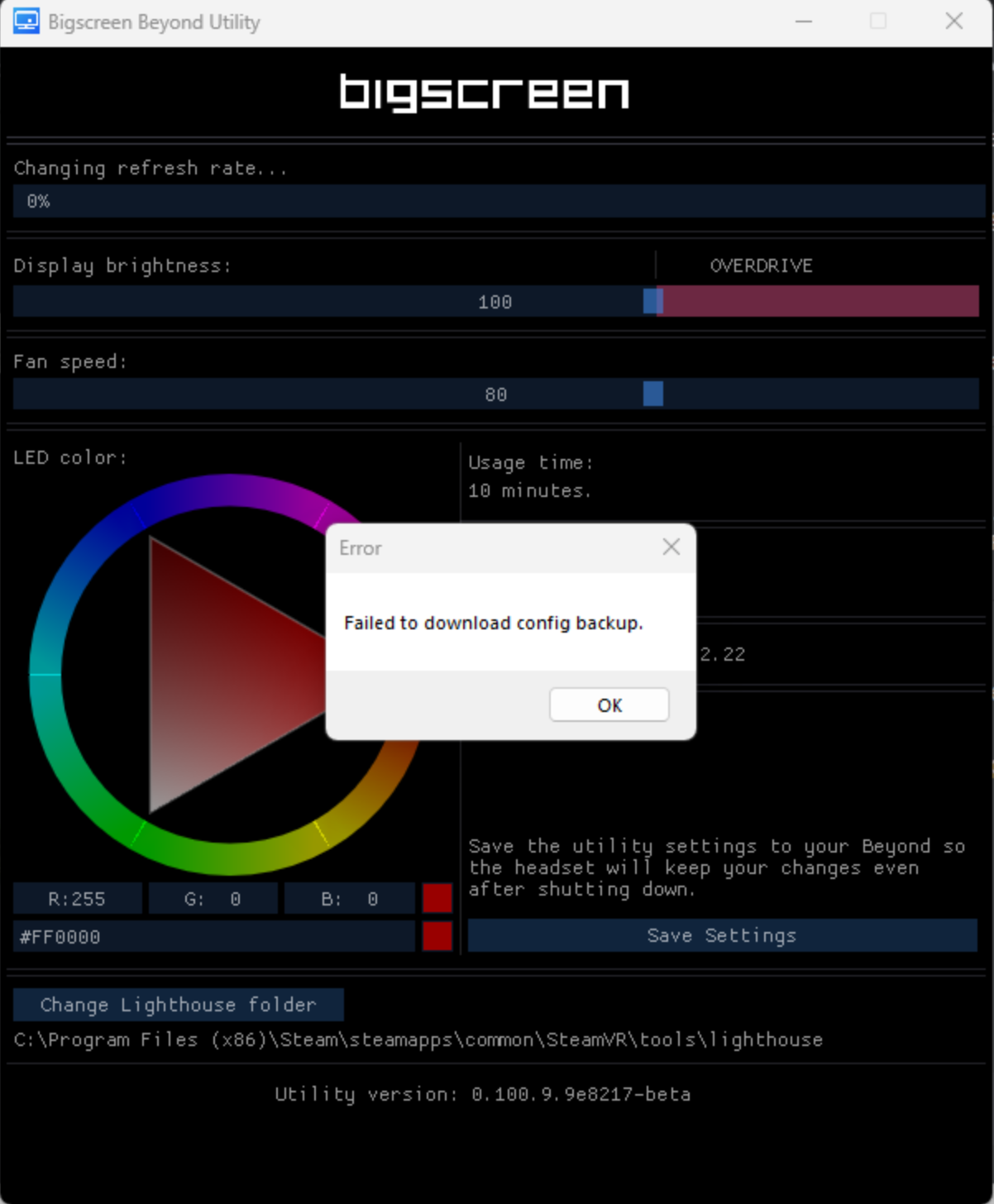
The Beyond won't switch its refresh rate / "Error: Failed to download config backup."
Overview
If your Beyond gives the message "Failed to download config backup" while trying to switch refresh rates inside the Driver/Utility, the headset's config file may be corrupted. SteamVR won't detect the headset correctly when it's in this state, and may pop up a variety of errors when you try to launch SteamVR, including Error 436.
Not to worry though, this can usually be corrected with the help of SteamVR's "Lighthouse Console" tool.
Config Reflash Procedure (Modern)
Not to worry, the utility saves a backup - and can be reflashed fairly easy.
Access the "Advanced settings" of the utility by clicking the version number at the bottom of the app.
Choose "Flash Lighthouse Configuration"
Navigate to your Bigscreen Beyond Utility folder
Select the lighthouse_config_backup_LHR-[Your headsets LH serial] and press open.
You can find your headset lighthouse serial at the top of the Advanced Settings page
Let the utility complete the process. The headset should now function normally.
If it does not, please contact us for further assistance!
DO NOT REINSTALL WINDOWS OR WIPE YOUR DRIVE FOR TROUBLESHOOTING
Backups of the config are contained within the utility and SteamVR. If they are deleted, they cannot be recovered.
Config Reflash Procedure (Legacy)
THESE STEPS SHOULD NO LONGER BE REQUIRED. USE THE MODERN VARIANT ABOVE. ONLY PROCEED HERE IF THE ABOVE FAILS.
It's a bit of a tricky process, so if you encounter any issues with this process, please contact us and we'll be happy to help guide you.
To correct this issue, we'll need do two things:
Find a valid config.json for this specific headset. It is critical to only use this headset's original configuration, as it contains calibration data unique to its optics. The config.json from a different Beyond won't work well for it.
Use the Lighthouse Console to flash the config.
Before you go any further, please disconnect ALL TRACKING DONGLES, CONTROLLERS, OR OTHER VR HEADSETS. Leave only the Beyond connected.
This is critical so we do not accidentally flash a different SteamVR device with the Beyond's config data.
Additionally, ensure that you do not have any trackers (the wearable trackers themselves, not just the radio dongles), controllers, or lighthouse base stations plugged into the PC via USB.
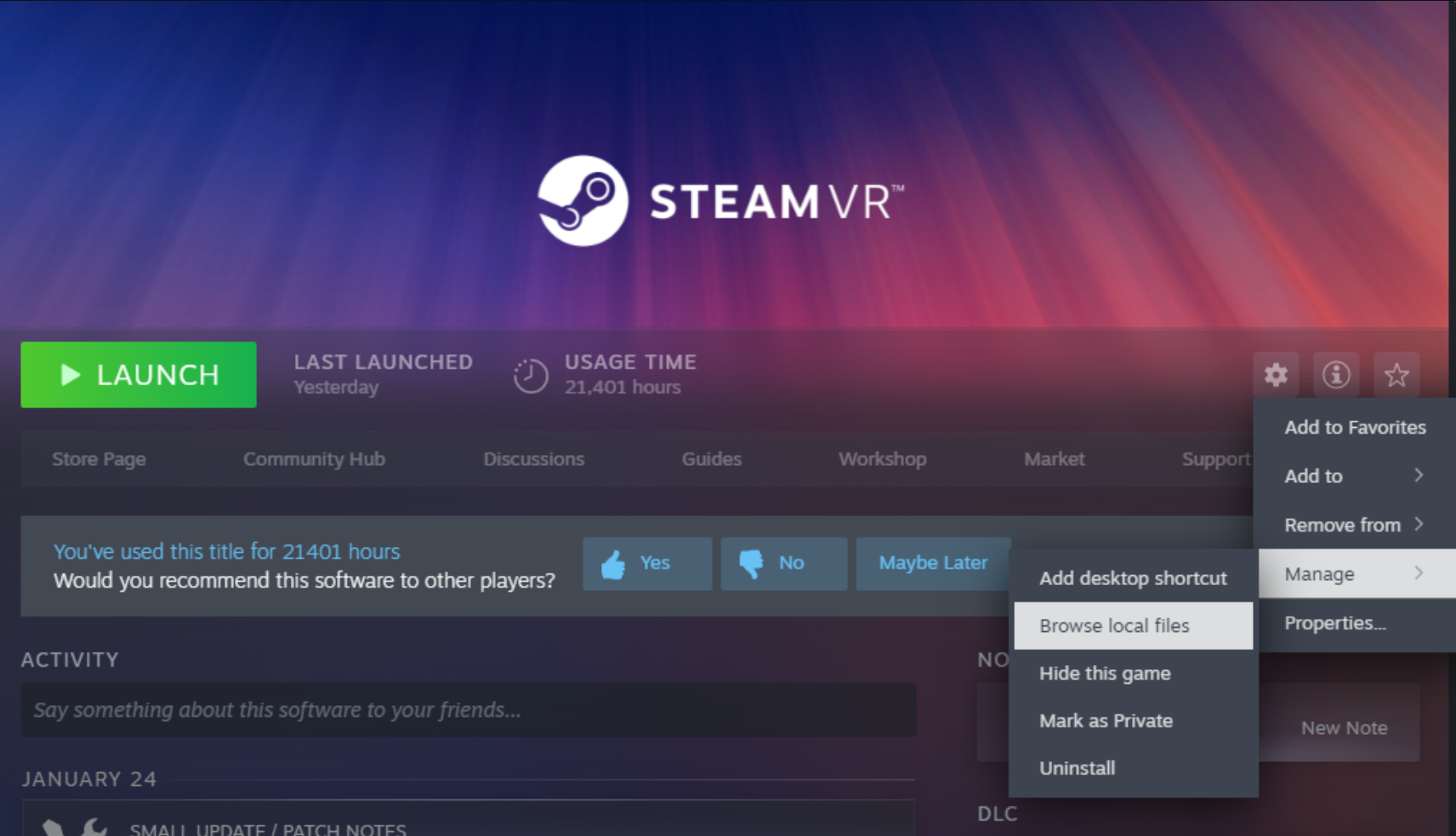
Once you're sure that only the Beyond is connected, please open Steam, browse to SteamVR in your library, and then go to Settings (gear icon) > Manage > Browse Local Files
In this folder, browse to
tools > lighthouse > bin > win64.Keep this window open for later.Double-click on
lighthouse_console.exe, which should open a new terminal window. If the config is corrupted, you may see something similar to the following:

In this window, look for the Beyond's Lighthouse ID, which should be something like 'LHR-ABCD1234'.
Next, we must find the correct config.json. If SteamVR was run before flashing the firmware update, it will have downloaded a copy of this config. If you have installed Steam on your C: drive, this can be found at
C:\Program Files (x86)\Steam\config\lighthouse\lhr-abcd1234(you'll replace the example folder name with your Beyond's own Lighthouse ID). Right-click and copy theconfig.jsonfile from this folder, and paste it into the lighthouse-console.exe folder.Go back to the lighthouse_console terminal window. It should be waiting at a prompt that looks like
lh>
At this prompt, type uploadconfig config.json and hit enter.
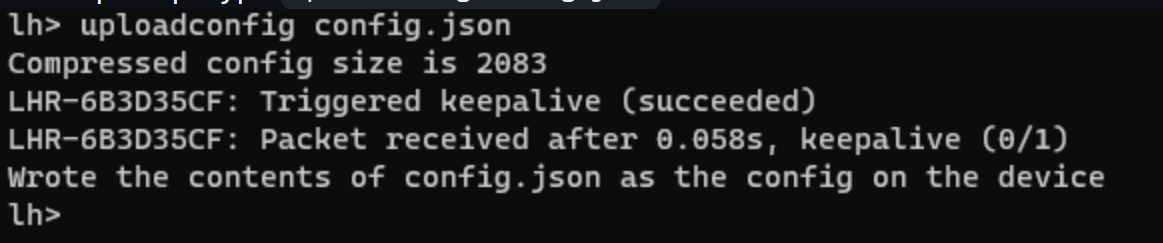
After a moment, the new config should be flashed. You can now close these windows, open SteamVR, and the Beyond should be properly detected.
Troubleshooting
I didn't see any LHR device listed in the console.
If you can't find the ID, don't proceed further -- please contact us and we'll continue from there!
There was no config.json file in the Steam config folder.
Don't worry, you may be able to use a backup configuration file that our Bigscreen Beyond Driver Utility stored the last time it updated the headset.
Find the Bigscreen Beyond Driver in your Steam library, go to Settings > Manage > Browse Local Files, and then enter the bin folder inside. You should find either lighthouse_config_backup.json or lighthouse_config_new.json. (Either one is good.)
You should verify this file matches your current headset before going further. The easiest way to tell is to check inside the file for the line "device_serial_number" and make sure it matches the Lighthouse ID you found earlier (i.e LHR-abcd1234).
From there, right click > copy this file and paste it into the lighthouse_config.exe folder, and then flash it using the steps above.