
Beyond 2 Eyetracking - Troubleshooting
Overview
If you're encountering any issues with setting up eyetracking with your headset, here's the place to get them resolved.
Enrollment Issues
The Utility says I need a token to perform enrollment.
Correct! For each personalized model, a token is required. This should typically get emailed to you once your headset ships. The email would be titled
Bigscreen Beyond 2e: Eyetracking now in beta! Your beta access token
The link to the token is contained inside. Once clicked, the token should be inputted into the utility automatically.
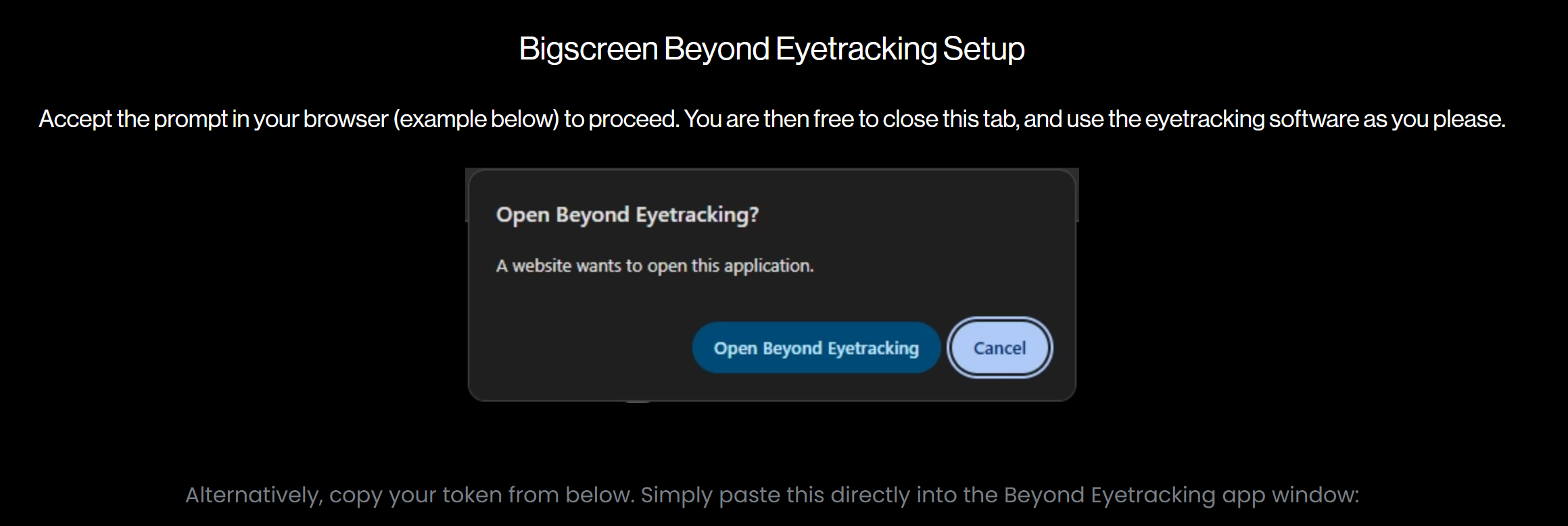
My Token is expired!
Tokens will expire from time to time, but not to worry. Going forward a new one will be sent to you automatically, but if you haven't received it feel free to contact us directly and we'll get one for you.
On the Discord server, you can send a DM to BigBot to obtain both your Beyond Owner role and your eyetracking token directly.
Token expiry only impacts the ability to train new models, and all existing models remain accessible.
The Enrollment App opens, then crashes immediately
To Fix: Head to SteamVR settings, OpenXR tab, "Manage OpenXR API Layers". Disable all of them, and then attempt enrollment again. Once complete, you can turn the API layers back on - they will not impact eyetracking itself.
The Enrollment App opens, but is black / some distorted geometry is present.
To Fix: Known issue with the latest AMD GPU Drivers. Revert to version 25.6.2 and attempt enrollment again.
Enrollment fails for another reason, or the error isn't listed above
"Failed to start enrollment" can have several different causes - a few more worth trying:
A simple PC restart has resolved this on its own for some users, even after other troubleshooting, worth trying early rather than last.
VPN or firewall software can block the enrollment model from uploading/processing - try disabling any VPN and allowing the Beyond software through your firewall.
Multiple Beyond Utility installs on the same system (for example after a drive swap) can conflict with each other - uninstall all copies before reinstalling fresh.
A dirty eye-tracking camera can cause enrollment to fail outright, not just affect video quality - try the standard cleaning method before enrolling again.
An out-of-spec USB-C-to-DisplayPort adapter (not genuinely DP 1.4 + DSC) can prevent the enrollment scene from rendering correctly.
Eyetracking issues (Software)
Accuracy was good at first, but deteriorated over time or after a setup change.
Accurate eye tracking currently depends on precise alignment between your eyes and how the headset sits on your face. Re seating the headset may require readjustment. This process will become more robust and automated in future updates.
How to verify your alignment: If eye tracking feels off-center during use, use the gaze cursor as a reference to correct your physical fit:
Enable the Gaze Cursor: In your Quad-View Settings (or eye tracking utility), enable the gaze cursor option to reveal a floating cursor in your VR view.
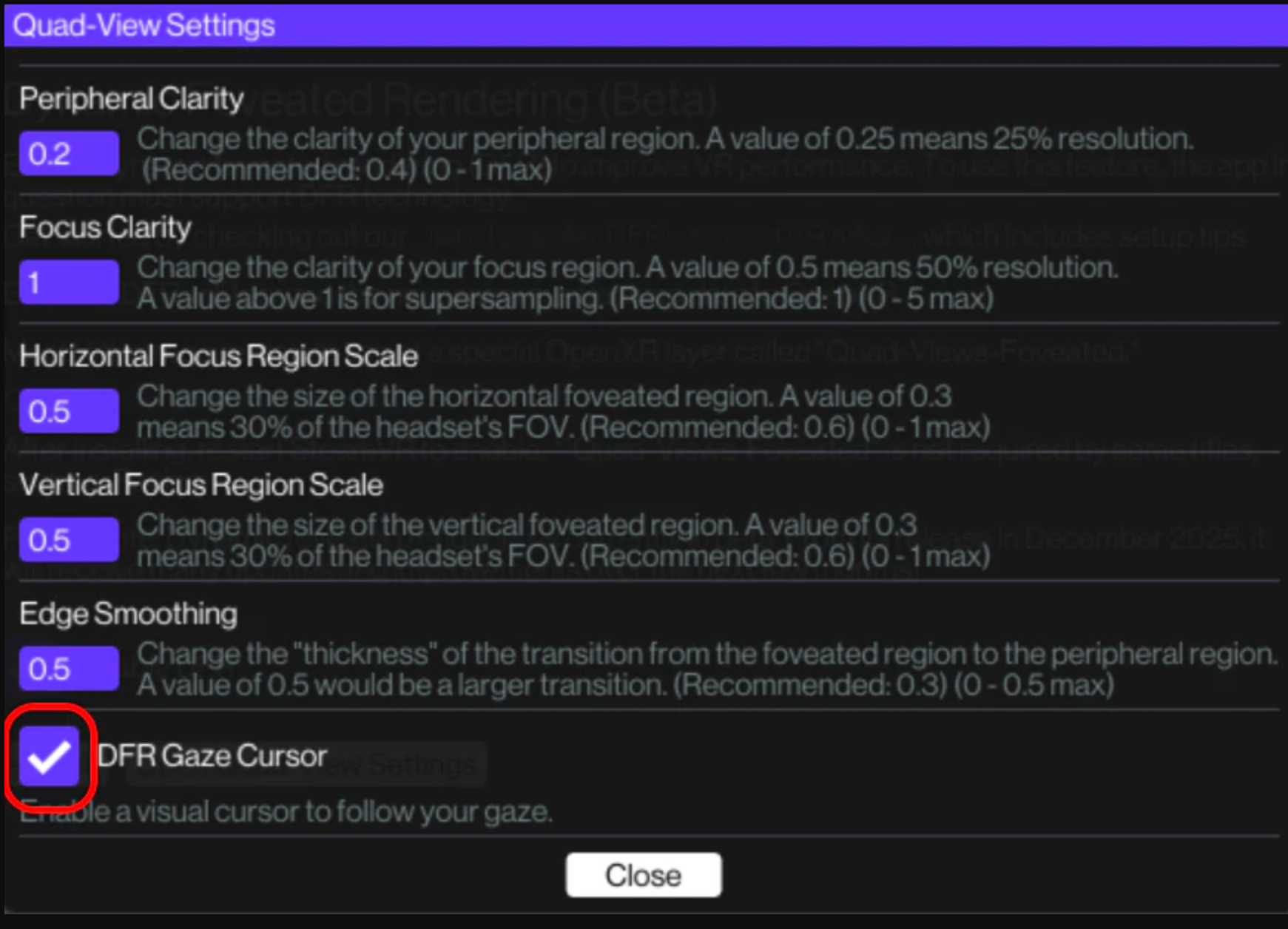
Focus on a Specific Object: Look at a fixed point in the cockpit or on the track. For this example, we’ll focus on the right green cone at the end of the pitlane.
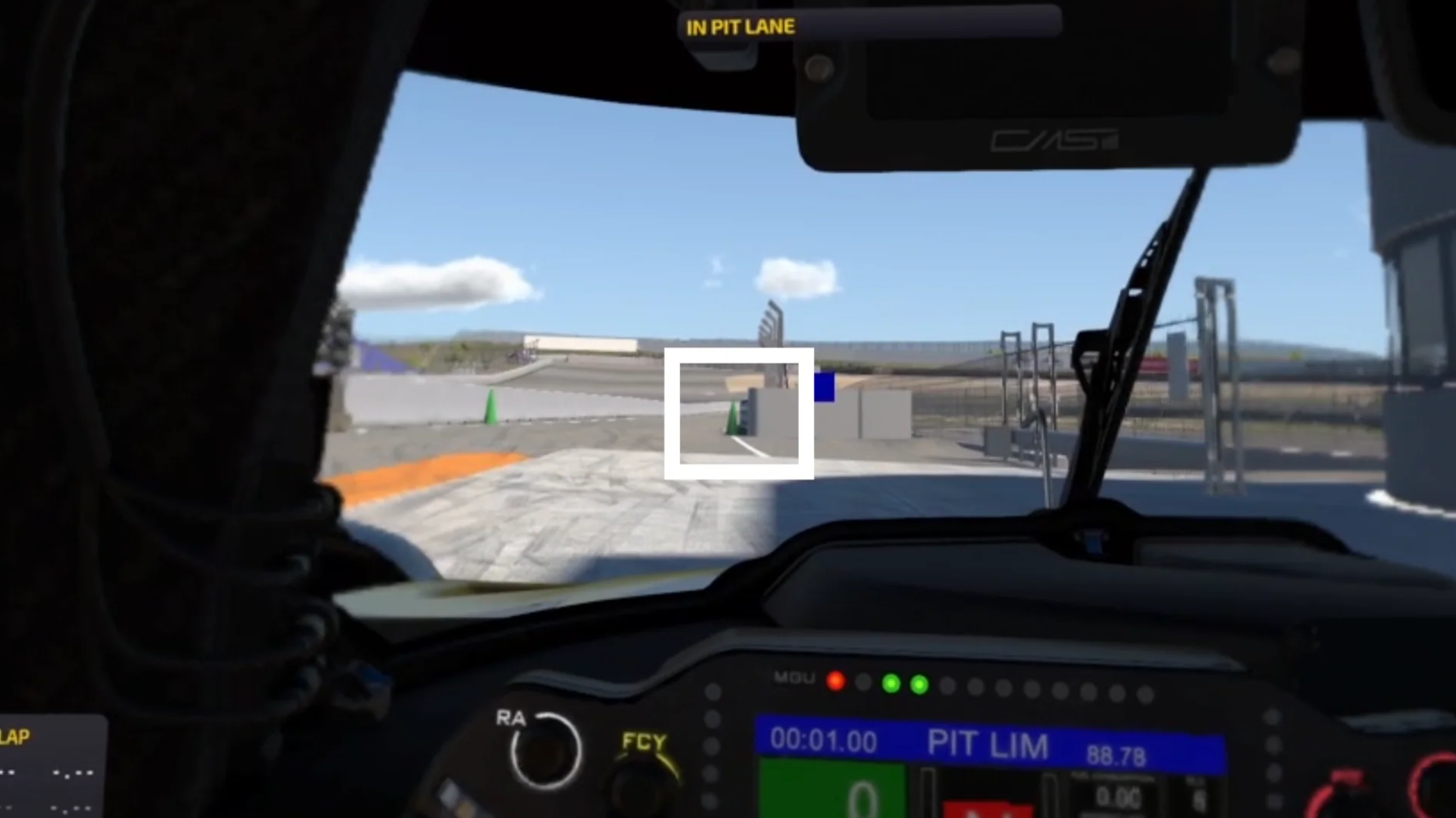
Align the Headset to Your Gaze: While keeping your eyes focused on that object, check if the floating cursor sits exactly on top of it. If it doesn't, physically shift and tilt the headset on your face until the cursor and the object overlap perfectly.

If you switch configurations, for instance between interfaces, or adjust your IPD, you will need to perform a new enrollment. We recommend naming your enrollments based on the configuration used (e.g. custom cushion, universal cushion)
DFR is enabled, but gaze is not moving
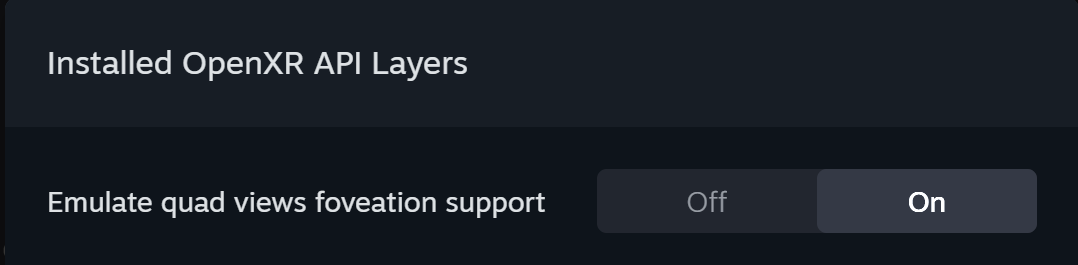
Check that the following layers are enabled.
In SteamVR > OpenXR > Manage OpenXR Layers, "Emulate quad views foveation support"
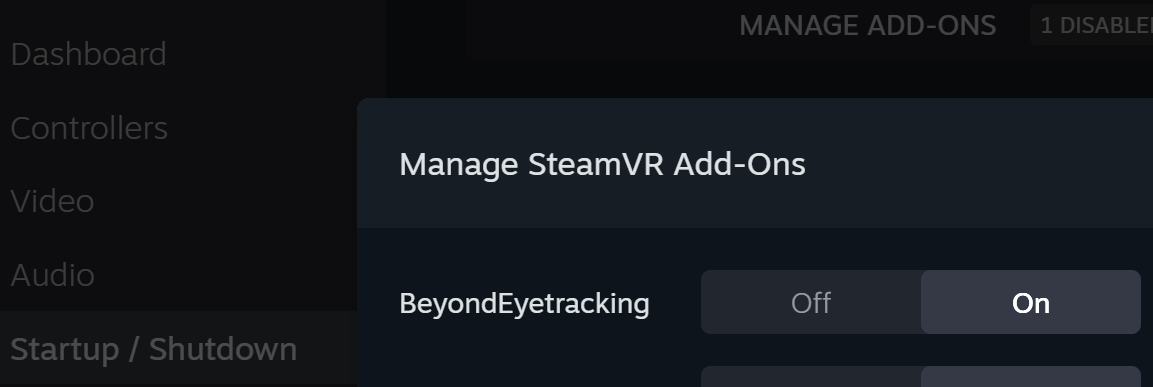
In SteamVR > Startup / Shutdown > Manage Add-Ons, "BeyondEyetracking"
Ensure the Beyond Eyetracking client is open, and that "Enable DFR" is checked.
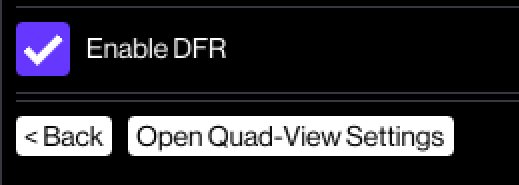
You must have the Beyond eyetracking client open in the background to utilize DFR.
Eye tracking isn't working while I'm using a third-party tool like Baballonia or VRCFT
This is expected, not a bug - the Beyond's own eye-tracking software and a third-party tool can't both use the camera feed at the same time.
"BigEye" shows up as "USB Video Device" in Device Manager instead
Uninstall the generic "USB Video Device" entry in Device Manager, then unplug and replug the headset - it should re-enumerate correctly as BigEye.
Eye tracking worked, then stopped working after moving/reinstalling Steam or the Beyond Utility to a different drive
A multi-drive reinstall can break the eye-tracking software's internal folder path. Manually copy the Bigscreen Beyond Driver\bin\eyetracking folder from your old install location into the new one to restore it.
Gaze data works in the Eye Viewer, but never reaches dynamic foveated rendering in an OpenXR app
Toggle the Bigscreen eye-tracking SteamVR add-on off, restart your PC, turn it back on, then restart again - a simple toggle without the restarts in between hasn't been enough in confirmed cases.
Tip: close the eye-tracking software fully (right-click and close from the system tray) rather than just closing its window when you're done - leaving it minimized in the tray can occasionally trigger an unrelated game's anti-cheat software.
Eyetracking issues (Hardware)
Eyetracking no longer functions, and displays cycle to an inverted image every 1 second.
This indicates a hardware issue with your Beyond 2e. Replugging all connections may help, however please contact support for additional assistance. Discontinue use of the headset while in this state.
Camera flicker or glitching
If your eye-tracking camera feed looks glitchy, flickering, or jittery, this is almost always a USB signal issue rather than a fault with the camera itself. Try these in order:
Power the linkbox from an external power supply
If that doesn't help, trt disconnecting all USB devices on your system to rule out congestion.
A Link Booster is often the most effective fix here, and commonly clears up simultaneous audio-strap crackle at the same time, since both share the same root cause.
If you're using a linkbox and cable carried over from a Beyond 1 upgrade order, replacing them with current-generation parts or purchasing a Link Booster is worth trying first.
Dust or smudges on the eye-tracking camera
External smudges and dust are cleanable with the standard method (koala cloth, or a blunted toothpick/cotton swab for tighter spots).