
Issues with completing the 3D Face Scan process?
Overview
If you're encountering issues with the scan process, such as the scan failing to complete, or getting stuck on the "lady scanning her face" screen, here's how to fix it.
Which devices can complete the 3D Face Scan?
To complete the 3D scan, an iPhone XR or newer is required. Older apple devices (e.g. iPhone X and older) won't work for the 3D scan process. The iPad Pro (11, 12.9, and 13" models) can also work.
Anything on this list will work, except for the iPhone X. Scan quality will remain the same even on older devices, barring any hardware issues.
Don't personally own an iOS device? Check out the "I don't have an Apple Device" help article
Things that can prevent the 3D Face Scan from starting:
Using an unsupported browser (only Safari is supported)
"Private Browsing" mode
Cookie/Ad blockers
Setting your text size (the aA button) to >125%
Using an Apple/App Store country that is outside of our supported regions
Using an out-of-date iOS version - in that case, please update iOS to the latest version
Workplace-related Wifi (may have restrictons. Try a different Wifi network, or cellular data)
How to disable "Private Browsing" mode on iOS:
Open Safari on your iPhone
Tap the Tabs button
Tap [number] Tabs or Start Page to show the Tab Groups list
Tap Private, then tap Done
Tips to ensure that the scan turns out well:
Perform the scan in a room with even lighting across your face.
Don't scan in a dark room, and don't scan with one side of your face having too much light.
Remove any hats, glasses or cosmetics.
This also includes brow piercings.
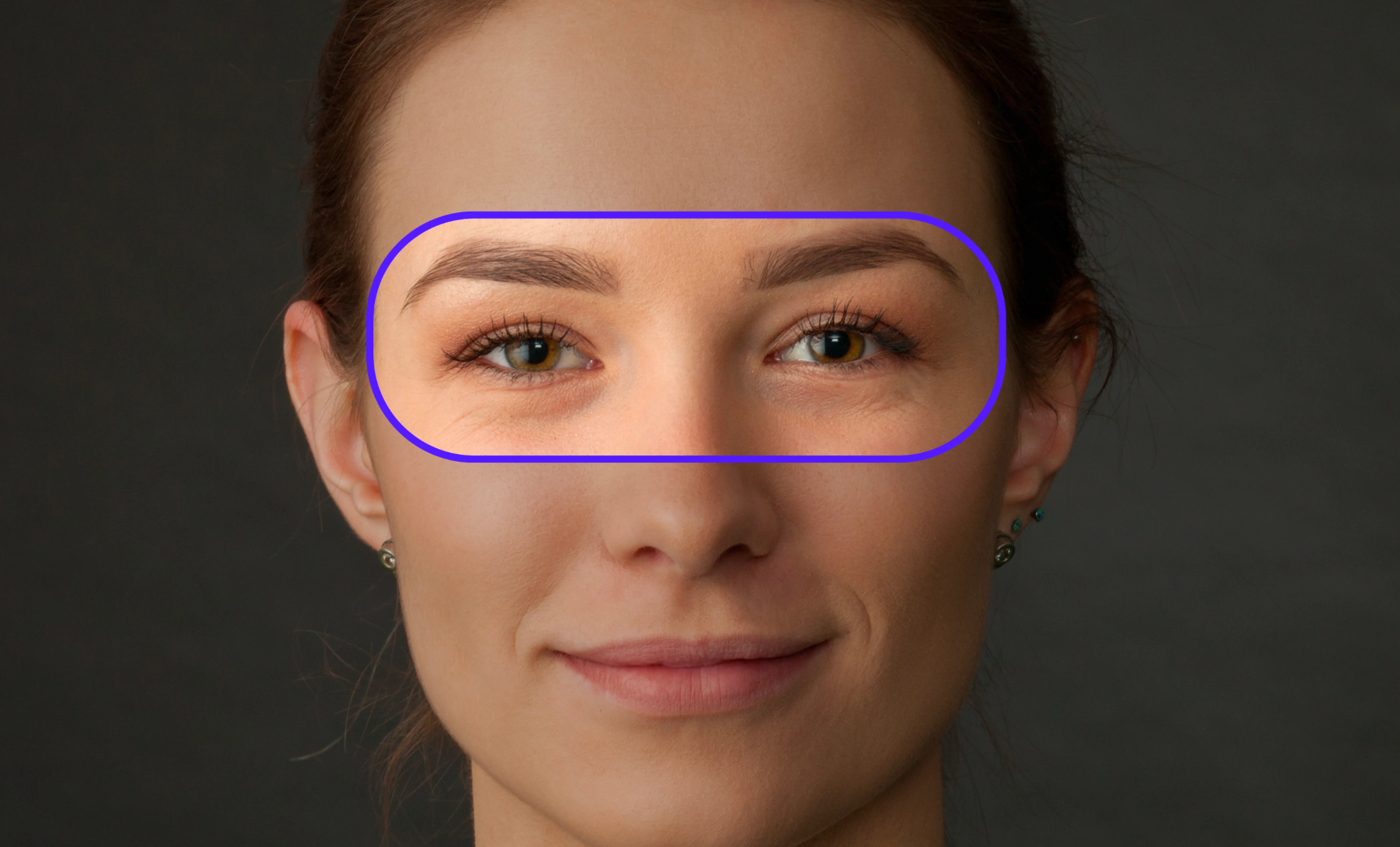
Ensure there is no hair in your face, near where the cushion sits.
The following image shows the area that you should keep clear of hair during the scan.
Keep your face parallel with the phone, and your eyes focused on the camera when initializing the scan.
When prompted to look into the distance, please make sure you look just above the front-facing camera, and not off to the left or right.
Keep the phone stable, and use steady, even movements during the scan.
When instructed to by the software, ensure that you turn your head 90 degrees to each side.
If this does not resolve the issue, contact us at support@bigscreenvr.com for additional assistance. If you do not have access to an iPhone, see this article: https://bigscreen-inc.frontkb.com/en/articles/2697536