
Black screening (briefly or permanently)
Overview
If your Beyond is only displaying a black screen, either temporarily (intermittent behavior, flickering, etc) or permanently (won't turn on), this article contains a variety of potential culprits and fixes.
Note: This article assumes your Beyond is otherwise being detected correctly in SteamVR and the Bigscreen Beyond Driver Utility. Other articles within this category will provide answers for those issues as well.
The OpenXR runtime
If you previously had any Oculus/Meta headsets, try uninstalling the Oculus software, restart PC and then try launching Steamvr again.
Of you can't/don't want to uninstall the oculus software please follow the steps below:
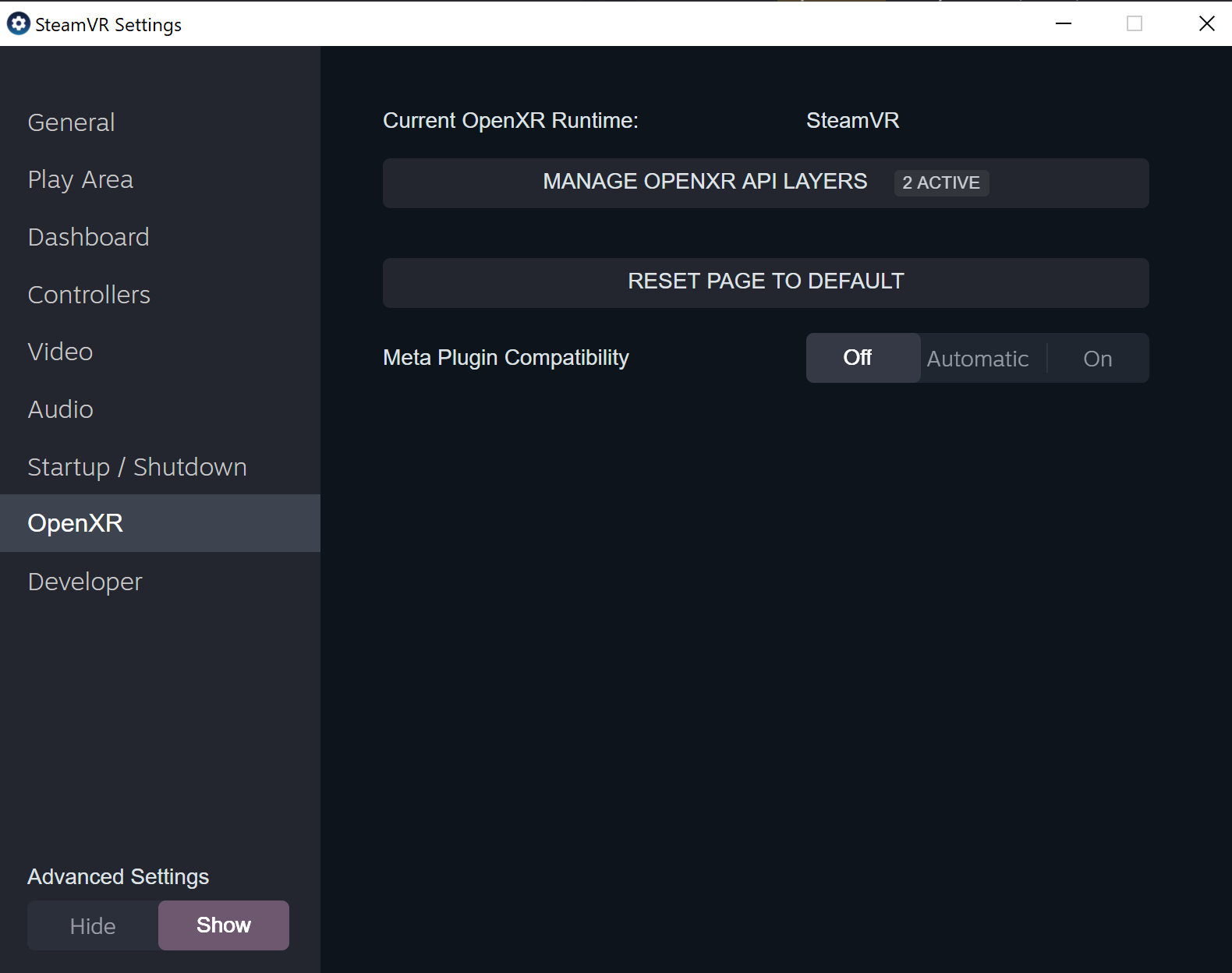
Open SteamVR settings
Head to the OpenXR page. Ensure "Current OpenXR Runtime" says SteamVR. (otherwise, hit the "Set SteamVR as OpenXR Runtime" button)
Ensure "Meta Plugin compatibility" is set to OFF
The Beyond blacks out / resets during bright scenes
If the Beyond starts to greyscreen, blackscreen, or restarts entirely when you see a bright environment, and gets worse if you increase the brightness in the utility (and vice versa), it's typically a sign the headset isn't getting the level of power it needs.
To fix this...
If you're using any cable extensions or longer 3rd party cables, please remove them and use the original Beyond cabling to test further.
Try out the power brick trick as mentioned in the common issues article.
Plugging the power + data cable into a different USB port, powered USB hub, or PCIE USB expansion card can help further!
Please make sure that any other ports, hubs, or expansion cards are USB 3.0 (or higher), which will be blue or red in color. USB 2.0 won't supply enough power.
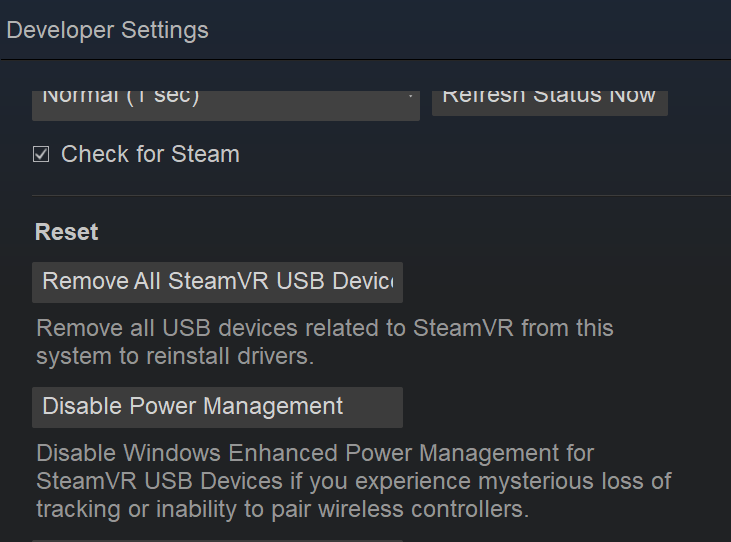
Ensure your windows power plan is set to "High Performance" and disable Windows Enhanced Power Management inside SteamVR>developer settings.
See the "Windows power settings" section in the Common Connection Issues help article for more details.
If the issue still persists, please contact us and we'd be happy to assist further!
The headset cuts out when wiggling the cable connector at the headset end
If your Beyond cuts to a black screen when wiggling the headset cable connector, it may be a bit loose.
As a "quick fix" option, you can try gently wrapping the headset cable connector with some tape to increase its thickness and decrease its ability to wobble - this can help ensure a more stable connection in the meantime.
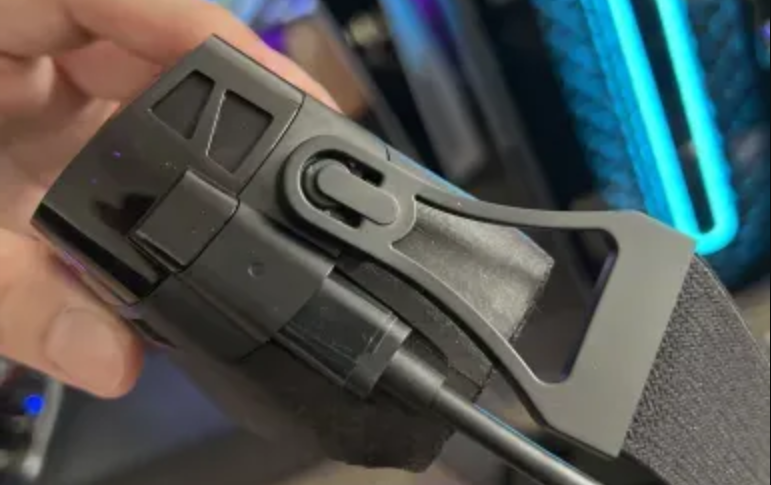
If that doesn't help, or if your Beyond cuts to a black screen when the cable is wiggled somewhere along its body, away from the plug at the end, it may be a sign of a failing cable. Feel free to contact us for additional assistance!
Per our hardware terms, regular wear and tear for cables, cushions, and straps are not covered under warranty. However, affordable replacements are available directly through our store: https://store.bigscreenvr.com/