
Common Connection Issues - Start Here.
Overview
If you're experiencing connection issues with your Beyond, start here.
This article contains various tips and tricks that can fix a lot of common connectivity problems. If you still have trouble afterwards though, please continue on to the more in-depth articles on specific issues.
Check the 1st time setup guide
You can find the official setup guide here: https://www.bigscreenvr.com/mybeyond
Hard requirements
The Beyond will not work without...
At least one SteamVR base station (either Valve or HTC-branded)
1.0 and 2.0 base stations are both compatible with the Beyond
Different generations of base stations can't be mixed together at the same time. Please use only 1.0 or only 2.0 units
A GPU that fully supports both DP 1.4 and Display Stream Compression (DSC), such as an NVidia RTX 2000 series or AMD RX 5000 series (or newer) graphics card.
Older graphics cards, such as the NVidia GTX 1080Ti or AMD Radeon RX Vega 64, are not compatible.
Integrated graphics (iGPU) included in some Intel and AMD processors are also not compatible.
Beyond is detected inside the Utility, but not SteamVR, and throws a "Failed to download config backup" when changing refresh rate
See this help article for more details.
Check All Connections
Unplug/replug all connections, verifying that they're correct and inserted fully.
Try different USB/DisplayPort connections.
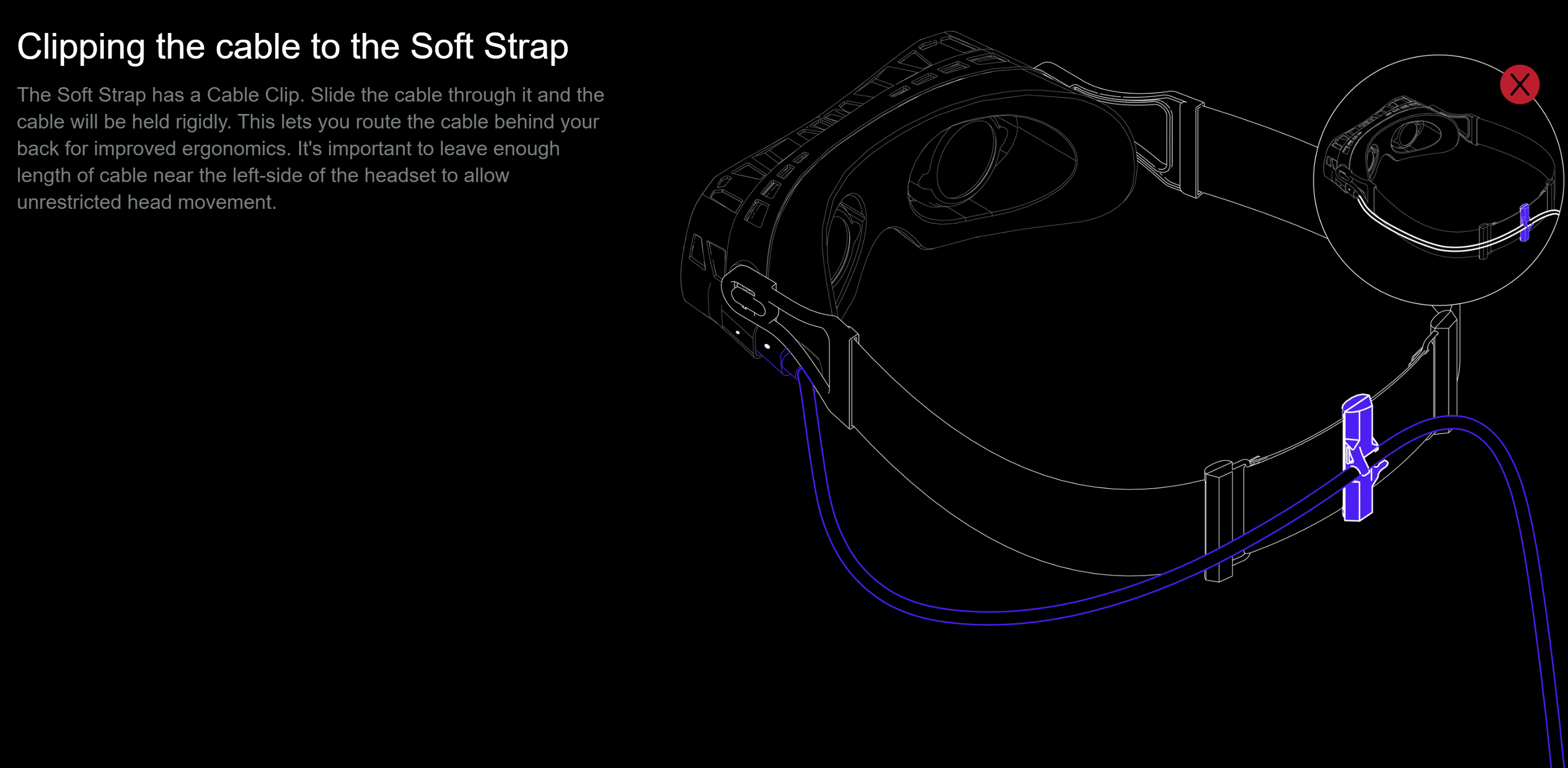
Ensure the cable has enough slack, and is inserted correctly into the rear cable clip, to avoid excess pressure on the cable.
Power Brick Trick
Sometimes motherboards (even high-end ones!) don't provide the strong, reliable power that's needed to properly run the Beyond.
In case your motherboard needs a little help, try plugging the Power-Only cable from the linkbox into a power brick (like a smartphone charger) that can output 5V2A. Alternatively, many externally-powered USB 3.0 (or higher) hubs also work well for this, so long as they have their own AC adapter or power supply.
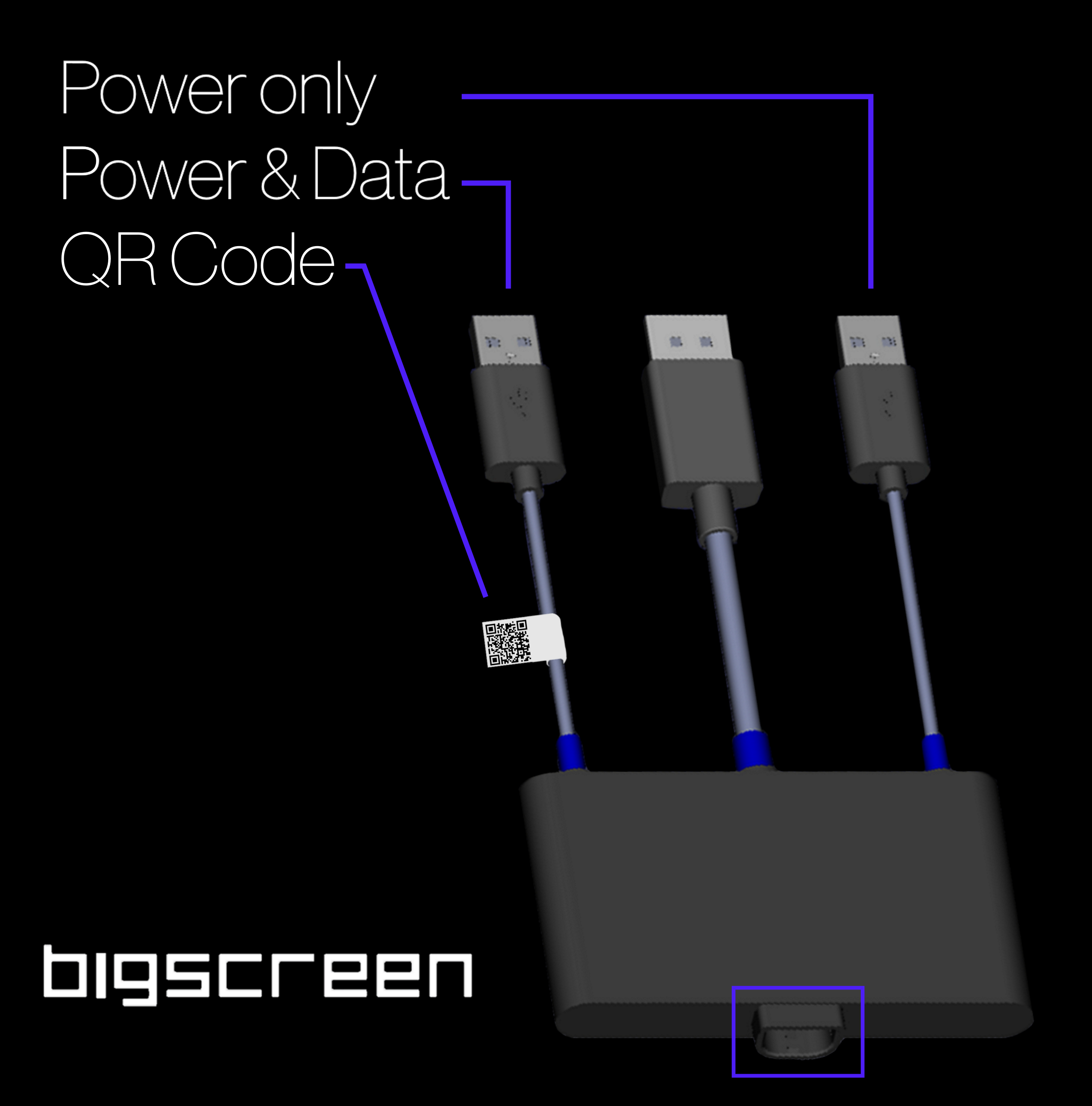
The above is a Beyond 1 linkbox. For Beyond 2, there is no QR code, however it is labeled directly as "POWER ONLY"
Windows Power Settings
If your Beyond or your other Lighthouse-tracked devices (such as controllers or full-body trackers) are acting strangely, it may be a sign that Windows isn't allowing enough power over USB to them.
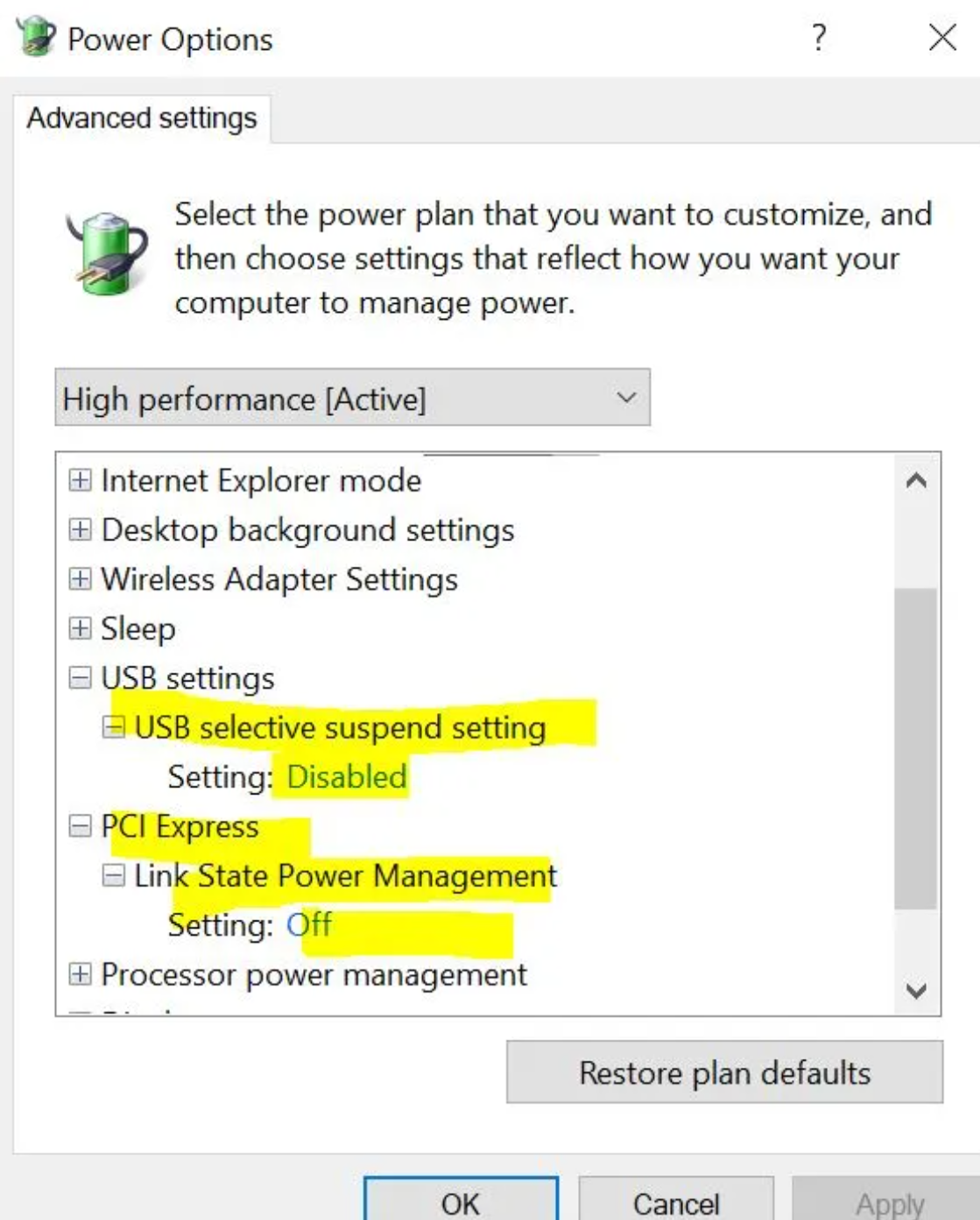
To fix this, please ensure that 'USB selective suspend' and 'PCI Express - Link State Power Management' are disabled.
Go to windows power plan settings
Click: Change advanced power settings
Find USB settings in the drop down and then USB selective suspend setting
Change that to DISABLED
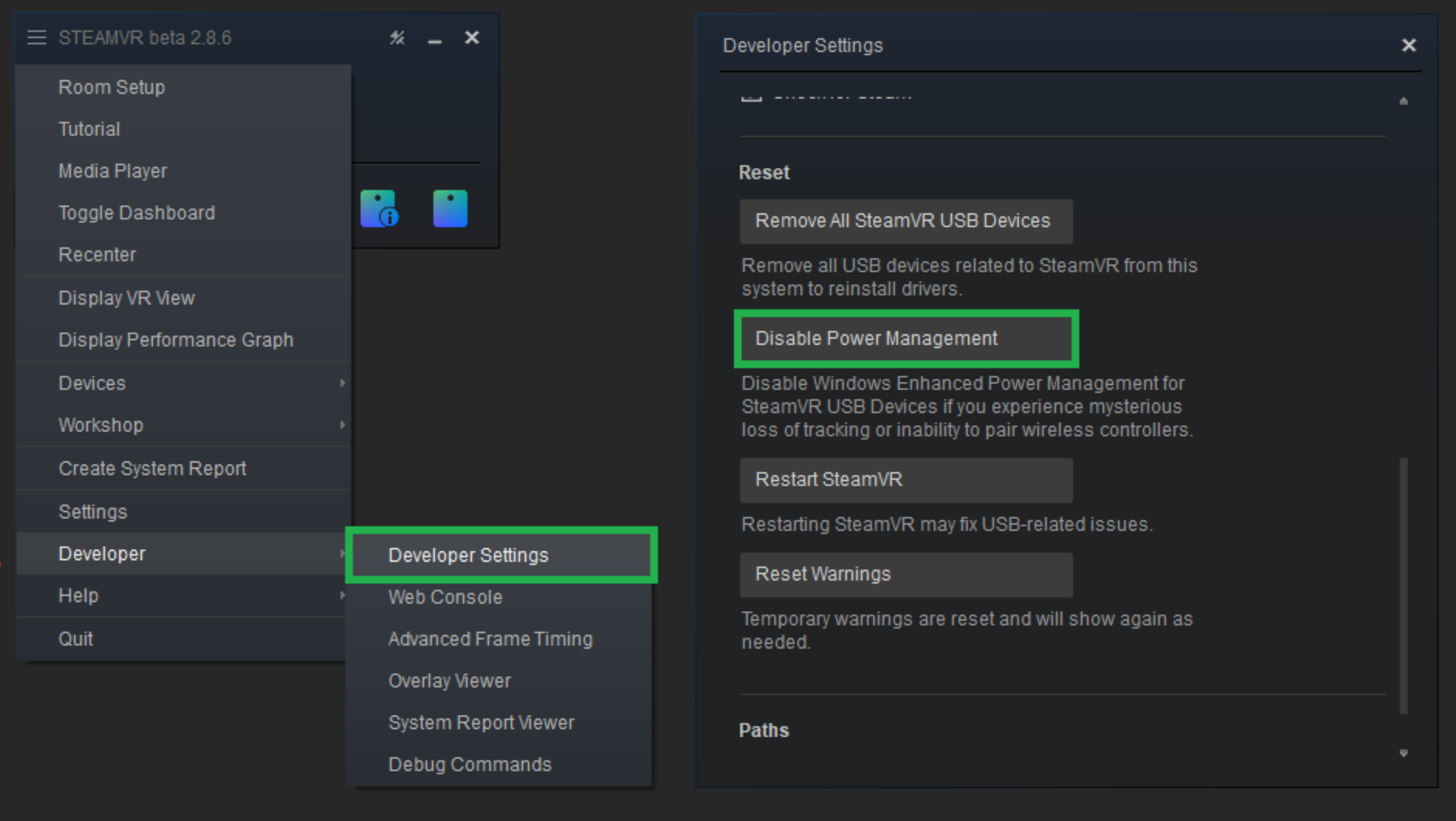
"Disable Power Management" inside SteamVR>Settings>Developer settings can also help with power-related issues.
Device manager settings
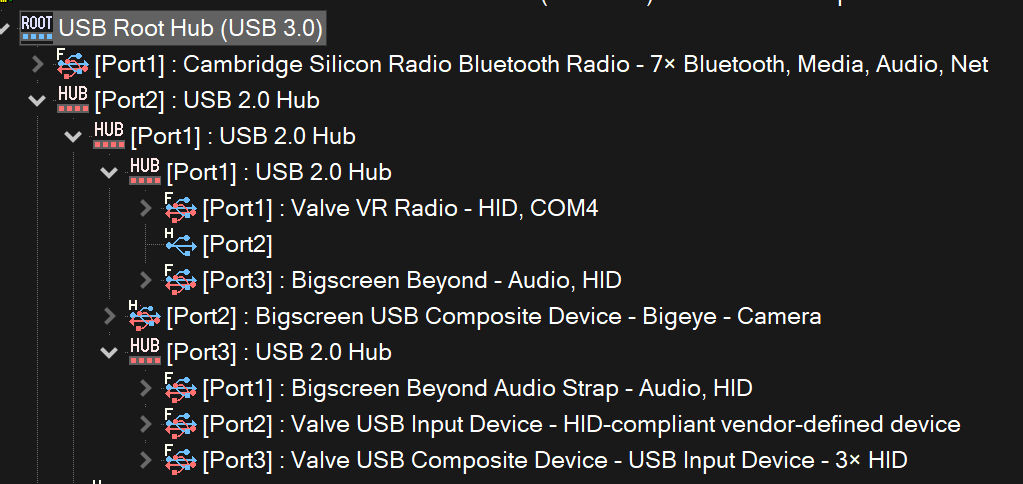
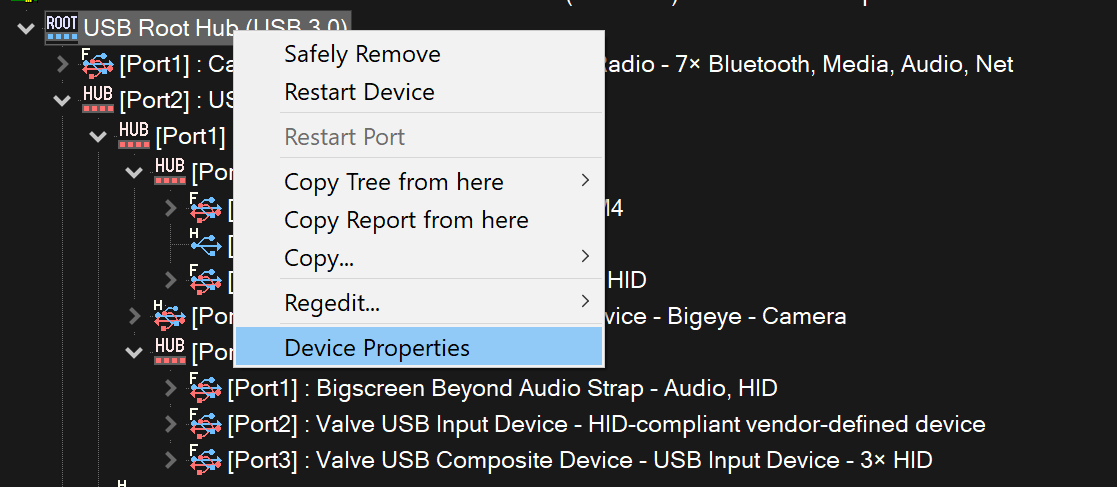
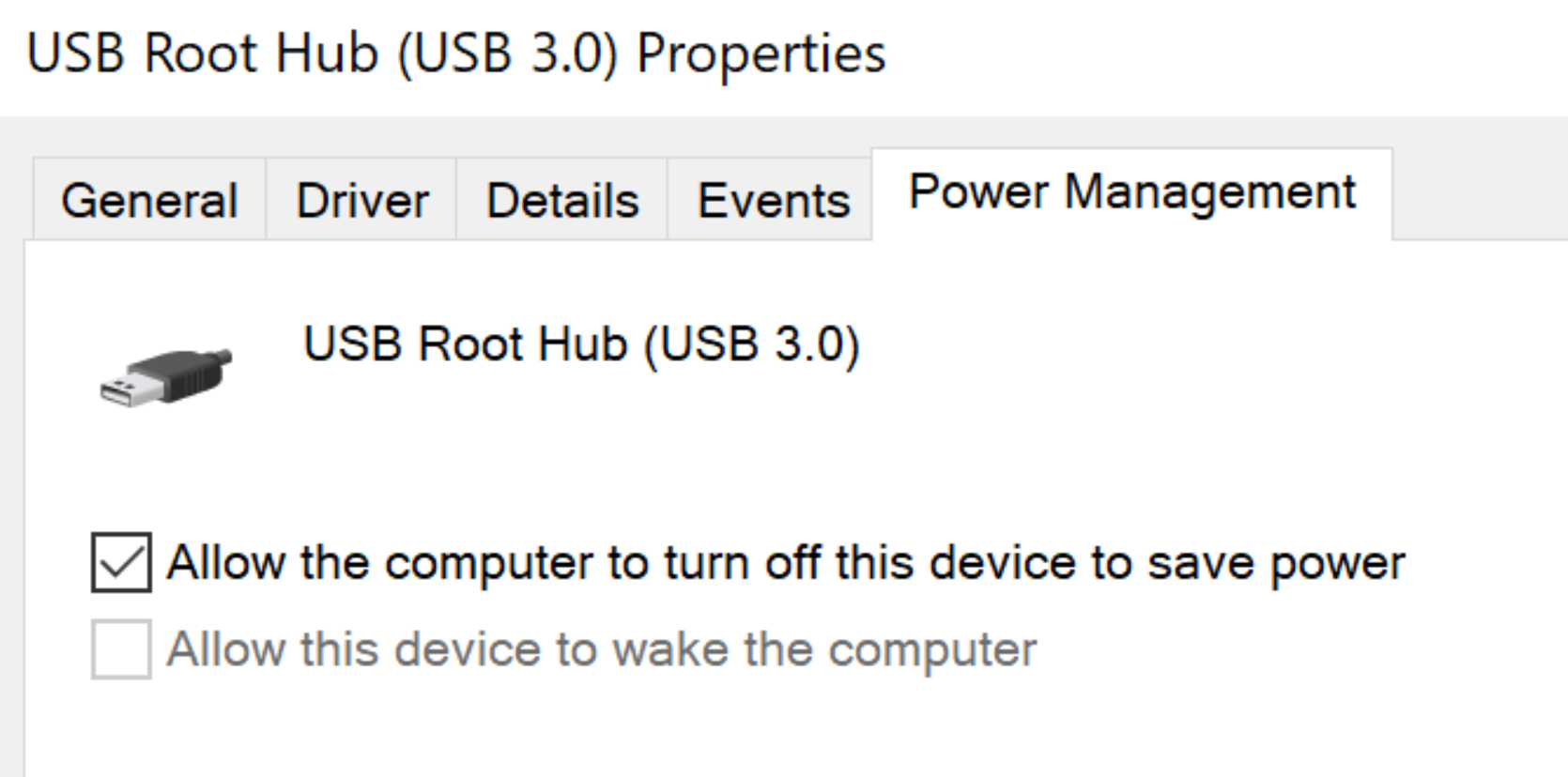
Disabling "allow the computer to turn off this device to save power" in device manager can help out. To locate which USB controller needs to be addressed, USB Tree viewer can be helpful here.
Issues with running the Beyond alongside multiple high-resolution displays
Certain combinations of powerful displays, including virtual reality headsets like the Beyond, can sometimes be a little too much for Windows to handle all at once, due to certain operating system and GPU driver limitations (both NVidia and AMD). When that happens, Windows and SteamVR can fail to detect and connect to the Beyond.
If you have multiple monitors connected in addition to your Beyond, especially high resolution or high refresh rate screens, we recommend either unplugging some of them, or temporarily reducing their resolutions and refresh rates.
For instance, if your current setup is running 4 total high performance monitors (including the Beyond), i.e:
1x 4k 165hz monitor
1x 2k 240hz monitor
1x 1080p 144hz monitor
1x Beyond
Try unplugging one of the monitors to see if that fixes the issue!
VR headsets also count as a high resolution display! If you have a Beyond connected alongside another HMD, try temporarily disconnecting the other HMD.
Cable wear
Cable wear often manifests itself as intermittent grey or black screening during play, especially if the behavior is triggered when wiggling the cable at the connectors or anywhere along its length.
Per our hardware terms, regular wear and tear for cables, cushions, and straps are not covered under warranty. However, affordable replacements are available directly through our store: https://store.bigscreenvr.com/