
Poor performance - stuttering, low FPS, wobbly images
Overview
If you're experiencing poor performance with your Beyond, there can be a variety of reasons why.
The Beyond itself won't impact performance, but there's a variety of software settings or interactions that can harm performance.
SteamVR settings
Resolution Per Eye
If you're experiencing poor performance, one primary cause might be the render resolution the headset is set to. By default, if left to "Auto" setting, SteamVR may try to supersample your headset (>100% resolution) which can be very performance demanding.
Head to SteamVR>Settings>General>Render Resolution
Set it to Custom = 100% (3560x3560 in 75hz mode, 2688 x 2688 in 90hz mode). Reduce/increase as desired from there, depending on the app and your graphic card's capabilities.
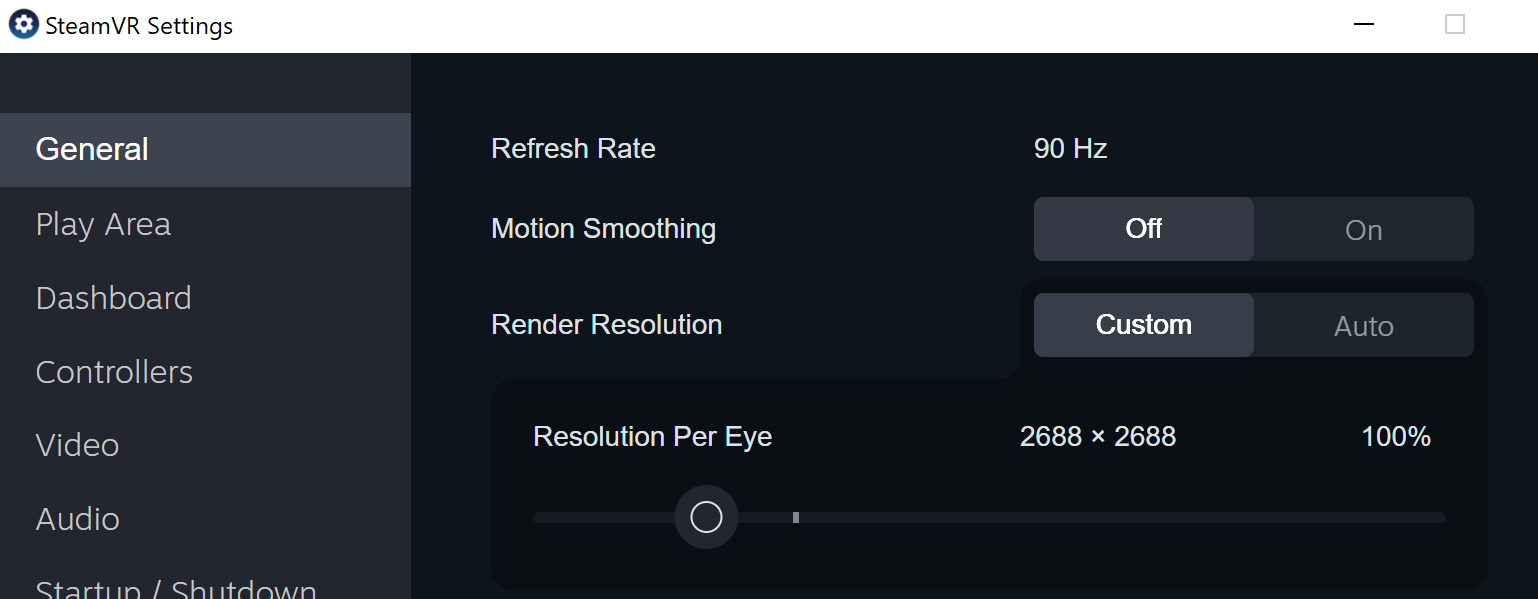
Motion Smoothing
This feature is designed to help improve the visual experience when SteamVR isn't hitting its native refresh rate.
Unfortunately, there are a number of issues with its implementation in recent versions of SteamVR, and they can cause visual artifacts, stuttering, or other odd behavior.
Best to leave this turned off.
Applications and processes known to cause stuttering
There's a variety of programs that sneakily run in the background, seemingly harmless until you play a VR session and notice tiny, annoying stutters. Here's a list of some culprits!
Hardware monitoring software
Software that monitors your system's performance can cause stutters, such as...
HWinfo
HWmonitor
MSI Afterburner
RGB Control software
Software that controls lights on your PC can cause stutters in VR - yes, really! Such as...
Corsair iCue
NZXT CAM
Asus AuraSync/equivalent from other boards
Overclocking software
Overclocking software can cause stutters too. Such as...
Palit ThunderMaster
eVGA PrecisionX
MSI Afterburner
And any similar tools
HAGS (Hardware Accelerated GPU Scheduling)
Check to see if your Windows is using Hardware-Accelerated GPU Scheduling (A.K.A. HAGS). It may change from build to build, but for some people having it on may cause issues in VR. To change this setting, navigate to the Windows display settings, and scroll down to the Graphics tab. You should see an option labeled "Change default graphics settings" at the top of that window. From there you can disable HAGS.
Do note that turning off HAGS will also disable the ability to use AI frame generation in games that support it (DLSS 3.0)!
Other Misc. culprits
Other software/settings known to cause stutters at times:
F.Lux
GSync/Freesync
ReBAR (Usually only with NVIDIA cards. BIOS setting)
Citrix
SteamVR settings that can look like a performance problem but aren't
SteamVR's performance graph showing all pink, or NVAPI-related errors, is usually fixed by a clean uninstall/reinstall of your GPU drivers.
SteamVR's Overlay Render Quality set to Auto or High can spike VRAM usage and cause stutter that looks like a hardware issue — try setting it to Low.
Doubled/inconsistent frametime numbers can trace back to the Beyond being connected while your PC boots (confusing display negotiation) — try connecting it after Windows has fully loaded.
A note on heat
A small amount of warmth while the Beyond is plugged in, even outside an active session, is normal - there's no fully "off" state while it's powered, and this isn't a performance issue. If it bothers you, a powered USB hub with per-port switches lets you cut power when you're not using it or simply unplug the cable.
If your Beyond feels warmer than usual and is also making abnormal fan noise, contact us directly with both details together - that combination can indicate a hardware issue that's worth us taking a closer look at rather than something to keep self-troubleshooting.