
"Headset Not Detected" / LED does not turn on
Overview
If your headset isn't detected by SteamVR after plugging it in, or the LED on the front of the headset isn't lighting up, here are some initial steps to help resolve the issue!
General Troubleshooting
🔍 Common Causes
• Loose or unplugged cables - USB or DisplayPort not fully seated
• Power issues - Link box/headset not receiving power
• Driver problems - Outdated or corrupted USB/GPU drivers
• USB port issues - Low-power or unstable USB ports
• SteamVR services not running - Needs a restart
• Hardware fault - Headset, Link Box, or connectors
🛠️ Recommended Steps
1. Reconnect all cables
Make sure USB + DisplayPort are secure. Try different USB ports.
2. Reboot your PC
This resets USB hubs and SteamVR services.
3. Power-cycle the headset
Unplug everything (including power), wait 30 seconds, reconnect.
4. Update drivers
Install the latest GPU + motherboard USB drivers.
5. Restart SteamVR USB Devices
SteamVR → Settings → Developer → Remove all SteamVR USB Devices
Then restart SteamVR.
Verify all connections
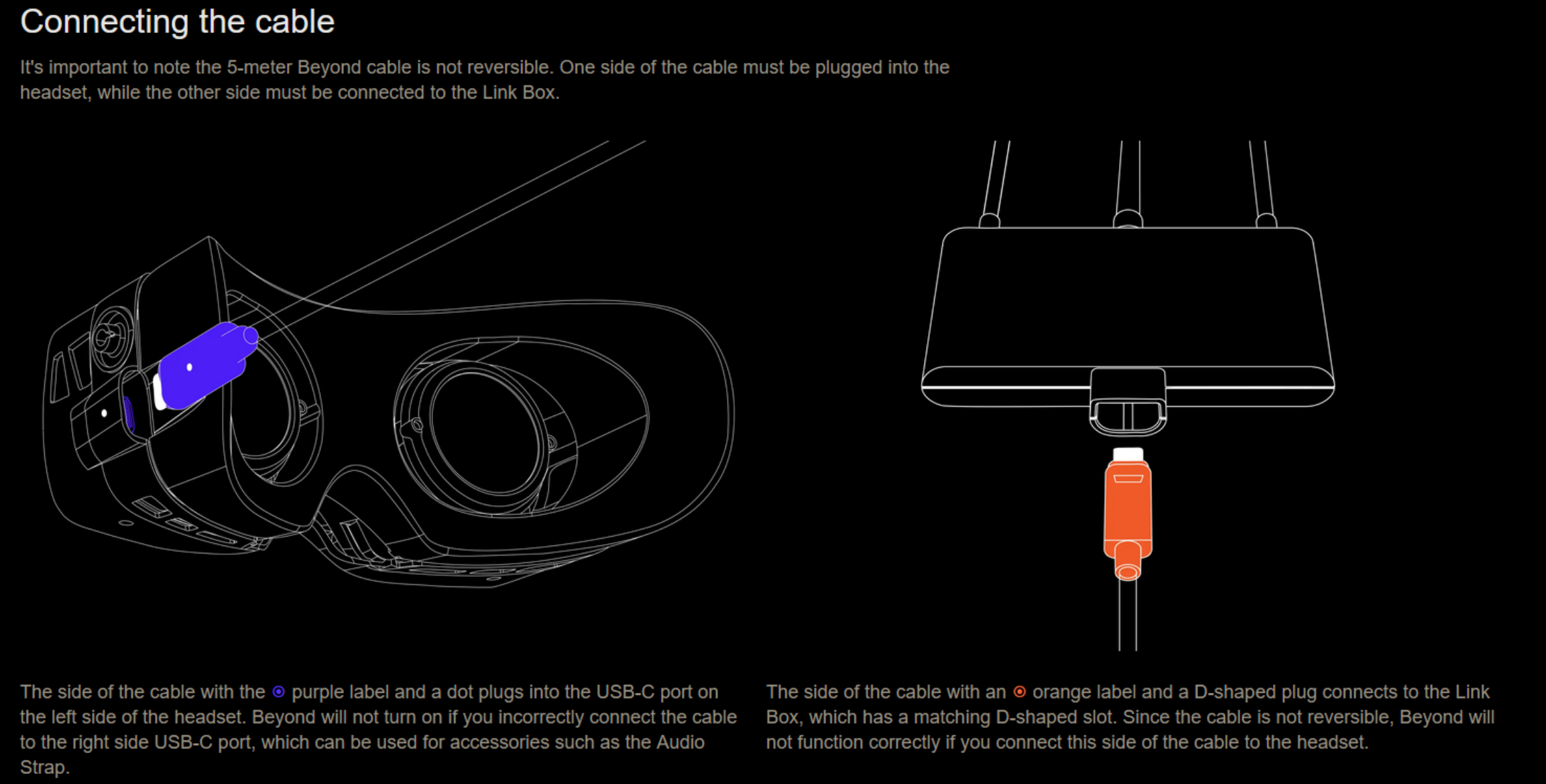
The long USB-C cable between the headset and the linkbox is not reversible and has a couple of particular requirements in how it's connected to both devices.
Please make sure that the purple-tagged end is plugged in to the USB C port that's on the left side of the headset, and that the orange-tagged end is plugged in to the Linkbox.
Ensure the linkbox end is plugged in fully with a gentle "click" -- it may go in farther than you'd think! If the cable is accidentally reversed or not seated fully, it may result in your Beyond not being detected.
If you still have trouble, try flipping the purple-tagged USB C plug that goes into the Beyond 180 degrees.
Check USB ports
Make sure both USB-A cables on the Linkbox are plugged into 3.0+ ports (blue or red) on your motherboard or PCI-E USB expansion card. USB hubs that are not externally powered may work poorly or not at all.
Still nothing? Run Steam as Administrator
An easy one to overlook: right-click the Steam shortcut and choose Run as administrator, then launch SteamVR. This has fixed detection issues many times.
Two different causes look identical and here's how to tell them apart
If none of the above helps, open SteamVR's Lighthouse Console tool (in your SteamVR install folder, under tools\lighthouse\bin\win64) and check what it reports for your headset:
No
LHR-########entry appears at all (only unrelated controller/tracker IDs) - this means the headset's onboard configuration memory has failed. No software fix exists for this; please contact us for an RMA.An
LHR-########entry is present, but SteamVR still won't detect the headset - this usually points to a missing or corrupted Visual C++ Redistributable rather than a hardware problem. Install/repair the latest Visual C++ Redistributable (x64 and x86) from Microsoft and try again - no RMA needed.
A quick way to tell which situation you're in without opening the console: if a different headset (or even an old one you have lying around) also fails to be detected on the same PC, that points to the PC-side software cause above, not something specific to your Beyond.
Issue still persists despite checking these topics
Try the other help articles within this category for additional assistance - if you still have no luck, contact us and we'll try to assist further! Make sure to let us know the troubleshooting steps you've followed thus far.