
AMD GPU Users: Additional Setup Required! | Extended Display Mode issues
Overview
There is a known issue with AMD GPUs where the headset will not be recognized at first, and is instead picked up by Windows as a monitor/display. We are still working with AMD on a permanent fix. Until then, you can do a one-time workaround, after which your headset will function smoothly with SteamVR as intended.
How to setup the Beyond correctly with an AMD GPU:
Ensure the Beyond is fully connected to your machine
Open Windows settings
Navigate to System > Display
Locate and click the display representing your Beyond
Change the display resolution to the maximum number allowed. This will either be "5088x2544" or "3840x1920"
Under the "Related settings" title, click Advanced display
Ensure the refresh rate is either 75Hz or 90Hz
After performing these steps, use the SteamVR developer settings to enable Direct Display Mode. The headset should now function as expected!
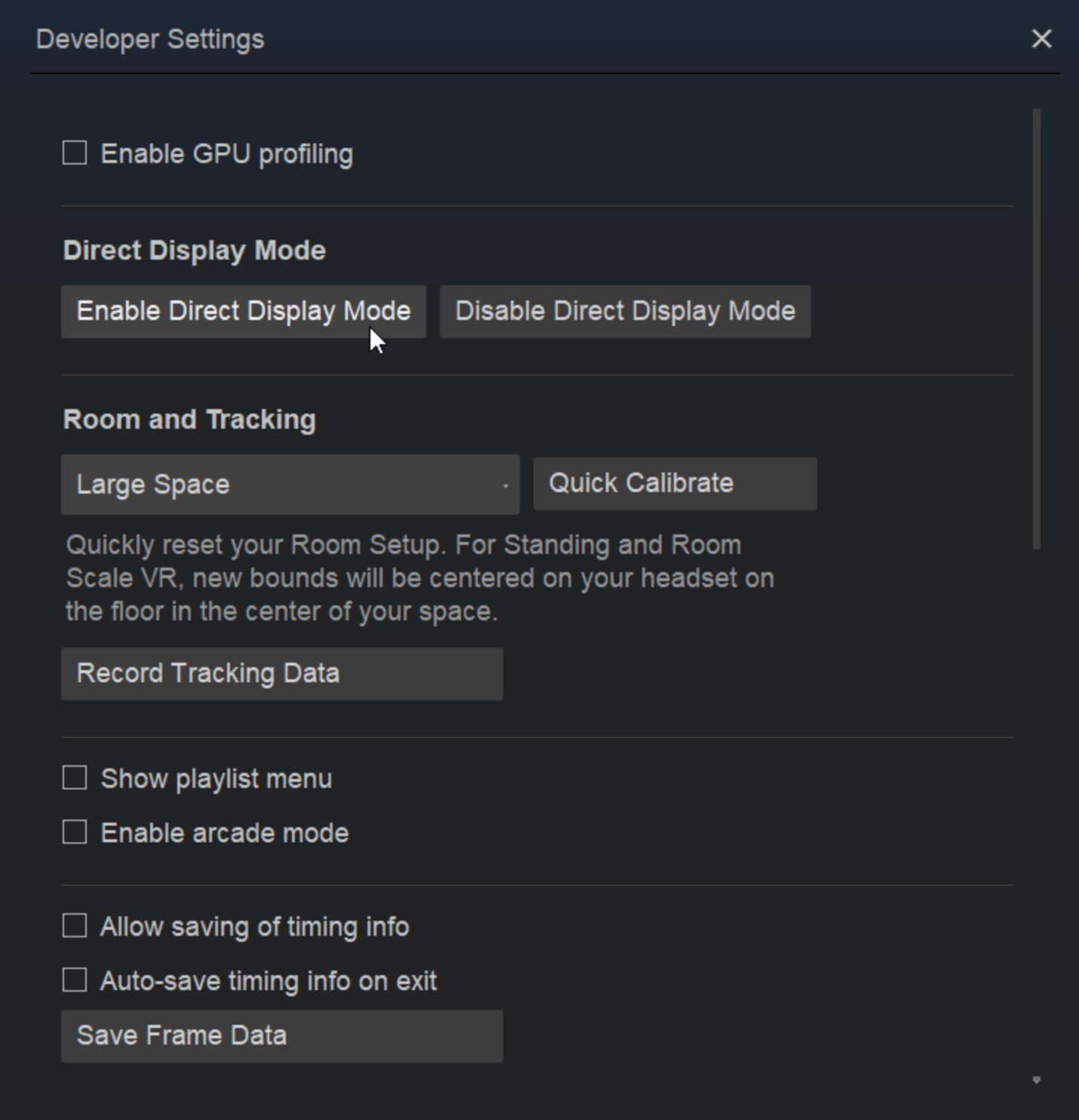
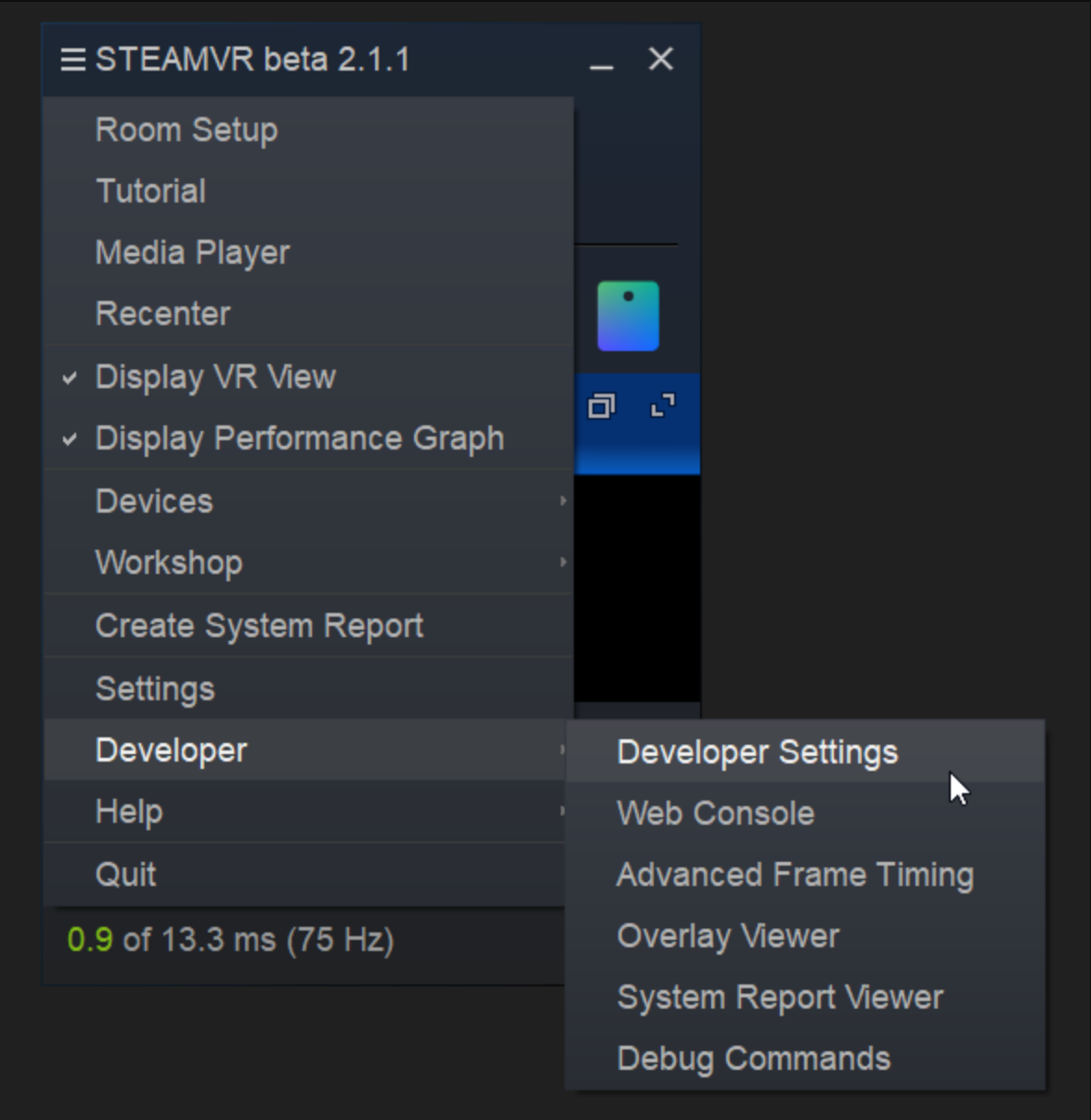
Details for those interested:
SteamVR will not recognize the Beyond if it's connected in Extended Mode instead of Direct Mode, and you can't change to Direct Mode unless the refresh rate and display resolution selected in Windows matches the HMD setting.
So, if you have 90Hz selected in Windows, but the HMD is trying to do 75Hz (default), SteamVR fails to find the headset.
Driver issues - 25.4.1 and newer
AMD Drivers 25.4.1 and newer have been reported to interfere with enabling direct display mode. Revert to 25.3.1 to set up your Beyond. Once direct display mode is enabled successfully, you may be able to update drivers afterwards without issue.
Caution: Do not leave the headset in extended display
If the headset remains in extended display mode, it will remain powered on (but dimmed when the proximity sensor is not engaged) even when SteamVR is closed. Driver updates or system changes may require these steps to be taken again.
Leaving your headset on extended display while static for long periods of time can lead to OLED burn in. See the Precautions when using your Beyond help article.
Headset is in Extended Display mode on an NVIDIA GPU
While less common, if your headset is running in extended display mode (or you've been directed here by the utility), there may be an issue with your Beyond initializing direct display mode. Typically, this can be a result of two culprits:
Driver issues. Performing a clean install of known good drivers is a great place to start - see our "Known NVIDIA/AMD Driver issues" page for the latest known issues and recommended stable versions.
Connection issues. Ensure your Beyond is fully plugged in at all connections. If the issue occurred suddenly after operating normally previously, it may be a hardware issue - contact support@bigscreenvr.com for additional guidance!
GPU incompatibility. The Beyond needs an RTX 2050 / RX 5600 XT at minimum to run. If you have an older GPU (such as an RTX 1080ti) or run a laptop that does not output the dedicated graphics over DP or USB-C, you may encounter issues.